


TL;DR: Claude Code offers seven distinct levels of mastery that transform the tool from a basic AI chatbot into a fully autonomous command center. Non-technical leaders can immediately apply the first four levels, including strategic planning, personalization, reusable workflows, and external app connectivity, to save hours weekly without writing a single line of code.

I have never been a coder. The terminal, that black screen with the blinking cursor, scared me away from even trying Claude Code for months. I had vibe-coded using Cursor before, and the experience was rough, with constant errors and no clear way to fix them. So when people told me to try Claude Code, I hesitated.
I heard about its usefulness from voices I deeply respect, from Jenny Ouyang to Wyndo to Claudia Faith to Karen Spinner. Then, I finally downloaded it. Followed a beginner’s guide, opened the terminal, and installed Claude Code.
That was my second ChatGPT moment.
The first was opening ChatGPT in late 2022 and feeling the ground shift under me. Claude Code gave me that same feeling. Look, since then, I have built a brand new website for my coaching and AI consulting practice at jsalinas.org. I replaced two apps my wife and I were paying $15 a month each for by building my own workout app (free for you to use as well :) ). And I moved my entire newsletter content creation system into Claude Code.
I barely touch the terminal directly. I just talk to it the way I used to talk to the regular Claude chatbot, but the output is on a completely different level.
(If you're curious what this looks like in practice for a non-technical leader, that's exactly what I help people set up.)
Now, from what I’ve seen, most people using Claude Code right now are stuck at Level 1. They do not even know the other six levels exist. Since the launch of Claude 4 models in May 2025, Claude Code’s active user base has grown 300%, according to a July 2025 report by The New Stack. People are flooding in, but most of them are barely scratching the surface.
In this post, you will learn:
How to plan before you build so Claude Code gets it right the first time
How to personalize Claude Code so it knows your business, your voice, and your rules
How to create reusable shortcuts that turn hours of work into single keystrokes
How to connect Claude Code directly to apps like Notion, Airtable, and Slack
What the advanced levels (5 through 7) look like when you are ready for them
Let’s dive in!
Level 1: Plan Before You Build
The single biggest mistake new Claude Code users make is typing a request and hoping for the best (Let’s call that level 0). Level 1 users learn to stop and plan first.
Claude Code has a built-in feature called Plan Mode. You activate it by pressing Shift + Tab. This switches Claude into a read-only research mode where it can browse your files, analyze your project, and propose a strategy before changing anything.
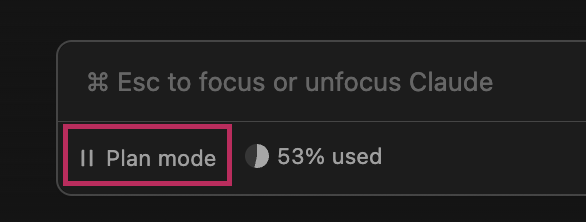
The workflow looks like this: you describe what you want built or changed. Claude asks you clarifying questions to nail down the details. You go back and forth until the plan is solid. Then you switch to execution mode, and Claude often builds the entire thing in a single pass because it knows exactly what you need.
Why this matters for leaders: Think of it like briefing a team member. The more thorough your brief, the fewer rounds of revision. Plan Mode is that briefing conversation, except it takes three minutes instead of three meetings.
Example
Here’s what it would look like…
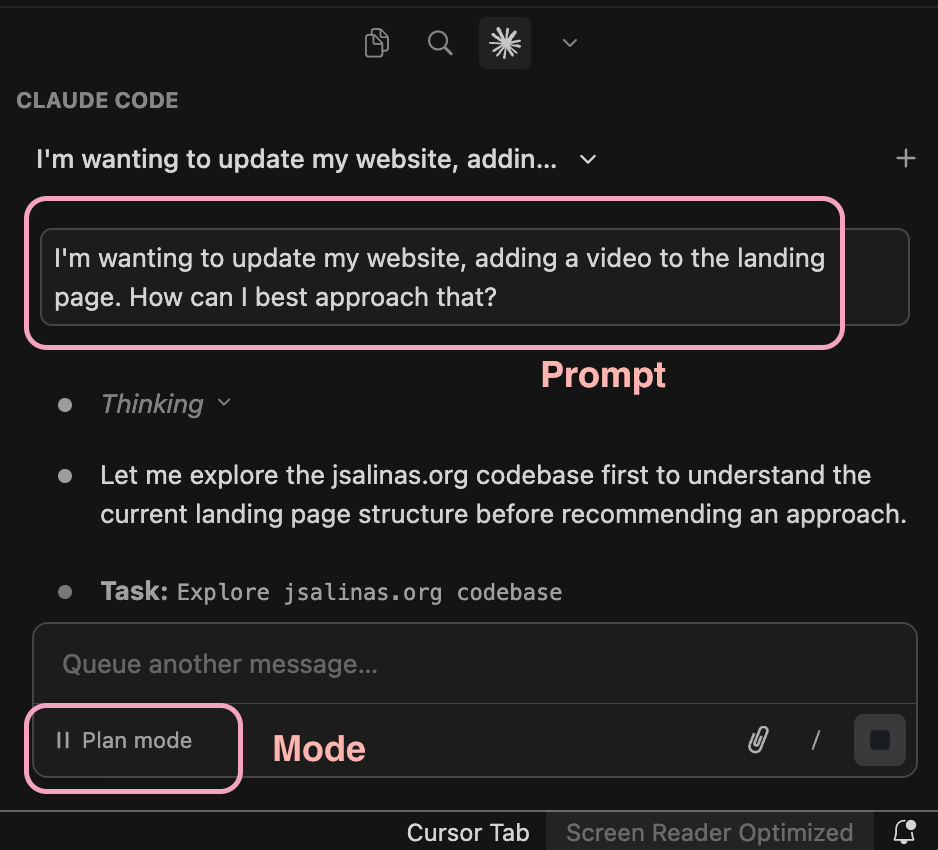
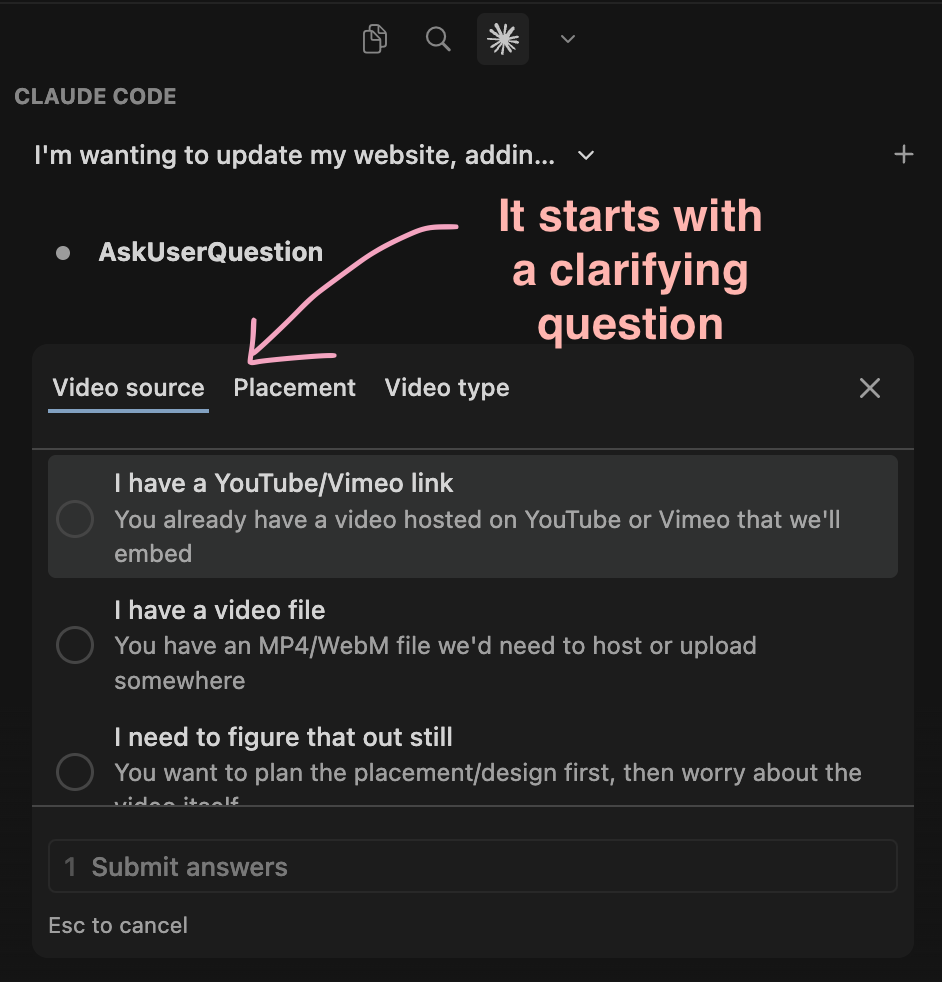
And after some thinking, it provided me with a full plan, and the option to accept or keep planning.
Level 2: Onboard Claude Code Like a Team Member
This is the level that changed everything for me. Instead of treating Claude Code like a generic AI, you onboard it the way you would onboard a new hire.
You do this with a file called claude.md (a simple text file that lives in your project folder). This file tells Claude Code exactly how you work: your tech stack, your brand voice, your preferences, and the mistakes you never want it to make.
I recently posted a masterpiece guest-post from Hannah Stulberg on this topic if you want to go in depth, and the principle is the same here. Claude Code reads your claude.md file at the start of every session. It remembers your rules every single time.
What goes in a good claude.md file:
What is this project? A one-sentence purpose statement
How do you run things? Specific operational steps, like where to store images or how to name files
What patterns do you follow? Brand voice rules, formatting preferences, non-negotiables
What are the common mistakes? Things Claude should never do, like using certain words or formatting styles
The golden rule: If Claude can figure something out on its own, do not put it in the file.
Example
Here is a snapshot of part of my claude.md file:
## Session Start Protocol

Every session, before doing anything else:
1. **Read `~/agent-orchestrator/data/session_essentials.md`** — this is your quick-context file. It has active focus, preferences, and open threads. Don't skip this.
2. Check the startup hook output for `MCP HEALTH`. If it says `FAILED`, tell Joel to restart.
3. Run `ToolSearch` for `mcp__orchestrator__store_memory`. If not found, tell Joel: **"Orchestrator MCP didn't connect. Restart the session."**
4. If orchestrator is online, search memory for context relevant to what Joel is working on.
5. **Auto-run the morning brief.** On the first user interaction of every session, automatically run the `/morning-brief` skill. Do not wait for Joel to ask — just run it. This includes the breaking news alert and Substack note draft.
In simple terms, here is what the piece above does for me daily:
Picks up where we left off — It reads notes from my last session, so it remembers what I’m working on
Makes sure everything is connected — It checks that all its tools (email, calendar, memory) are working, and tells me if something’s broken
Remembers past conversations — It searches its memory, so it doesn’t ask me the same things twice
Gives me a daily briefing automatically — It shows me what’s on my plate today — meetings, deadlines, and what to focus on — without me having to ask
Level 3: Automate Your Repeatable Work
Once you have your foundation set, Level 3 is where you start getting serious returns. This level introduces three tools: slash commands, skills, and hooks.
Slash commands are saved prompts you trigger with a single keystroke. If you write LinkedIn posts every week, you can create a command called /linkedin-post that loads your exact format, tone rules, and structure every time. No more re-explaining what you want.
I covered five of my most-used skills in 5 Claude Skills That Save Me 40 Hours Monthly. The time savings compound fast.
Skills take this further. A skill is like an upgraded command that includes an entire folder of reference material. Think style guides, brand documents, and examples of past work. Claude loads this background knowledge only when relevant to the task, keeping things fast and focused.
Hooks are automatic quality checks that run without Claude having to “think” about them. For example, you can set up a hook that scans every piece of content for banned words or checks word count. It runs instantly in the background, saving tokens and time.
Example
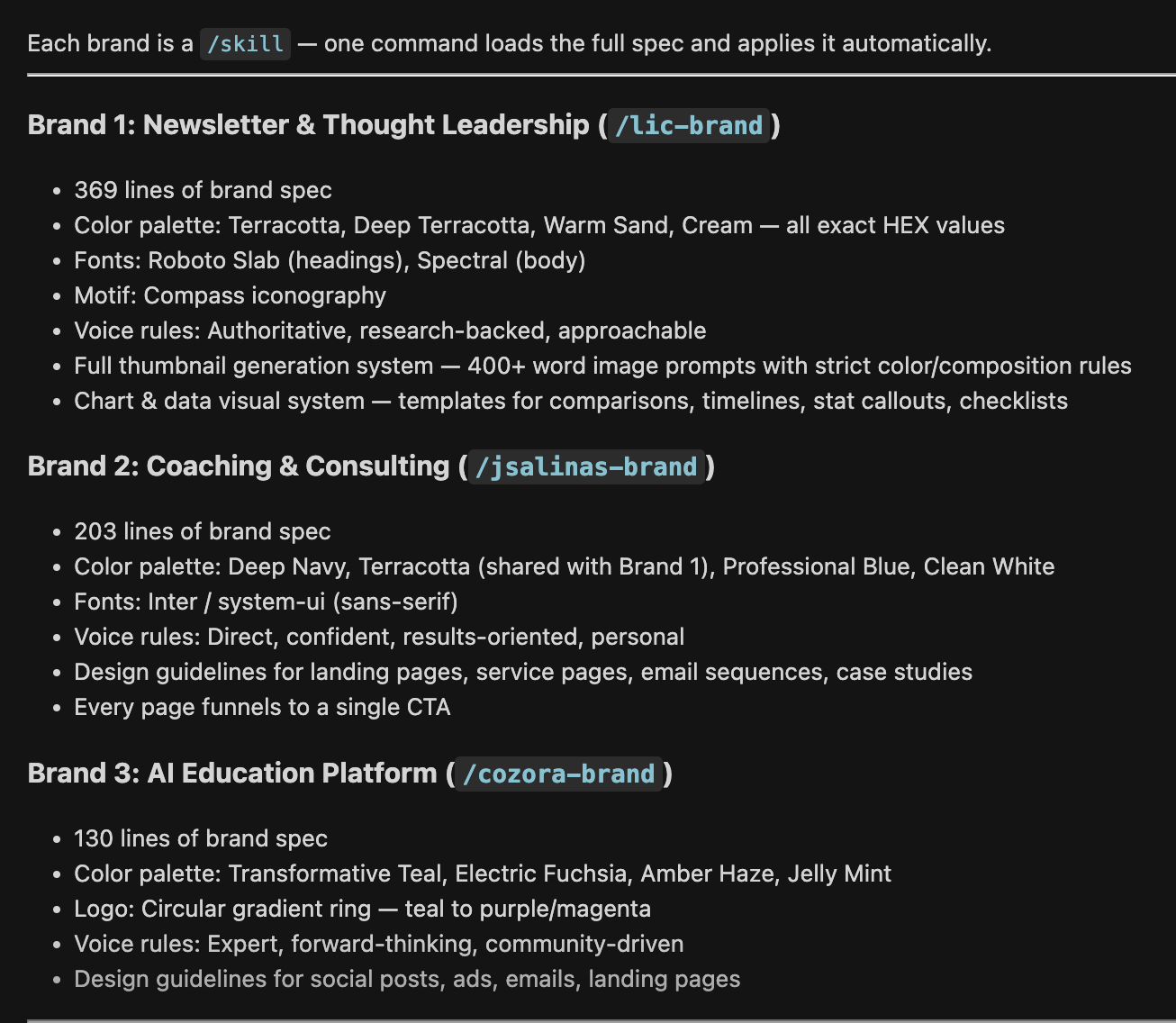
As an example, I’ve created a brand skill for each business I own or co-own so that anytime I reference them in Claude Code, everything stays on-brand automatically.
Cozora.org — AI education platform
NewsletterCompass.com — newsletter growth tool
LeadershipInChange.com — leadership newsletter
jsalinas.org — AI coaching & consulting
One command — like /cozora-brand landing-page — loads every color, font, voice rule, and design pattern for that brand. No re-explaining. No brand drift. Every piece of content comes out on-brand the first time.
Here’s a glimpse at those brand skills:
Stop reading for a second. Think about the three tasks you repeat most often in your work. A weekly report. A social media post format. A client onboarding email. Now imagine each one triggered by a single keystroke, with all your rules already loaded. That is Level 3.
Level 4: Connect Claude Code to Your Entire Workflow
This is where Claude Code stops being a writing and coding tool and becomes an operating system for you or for your business.
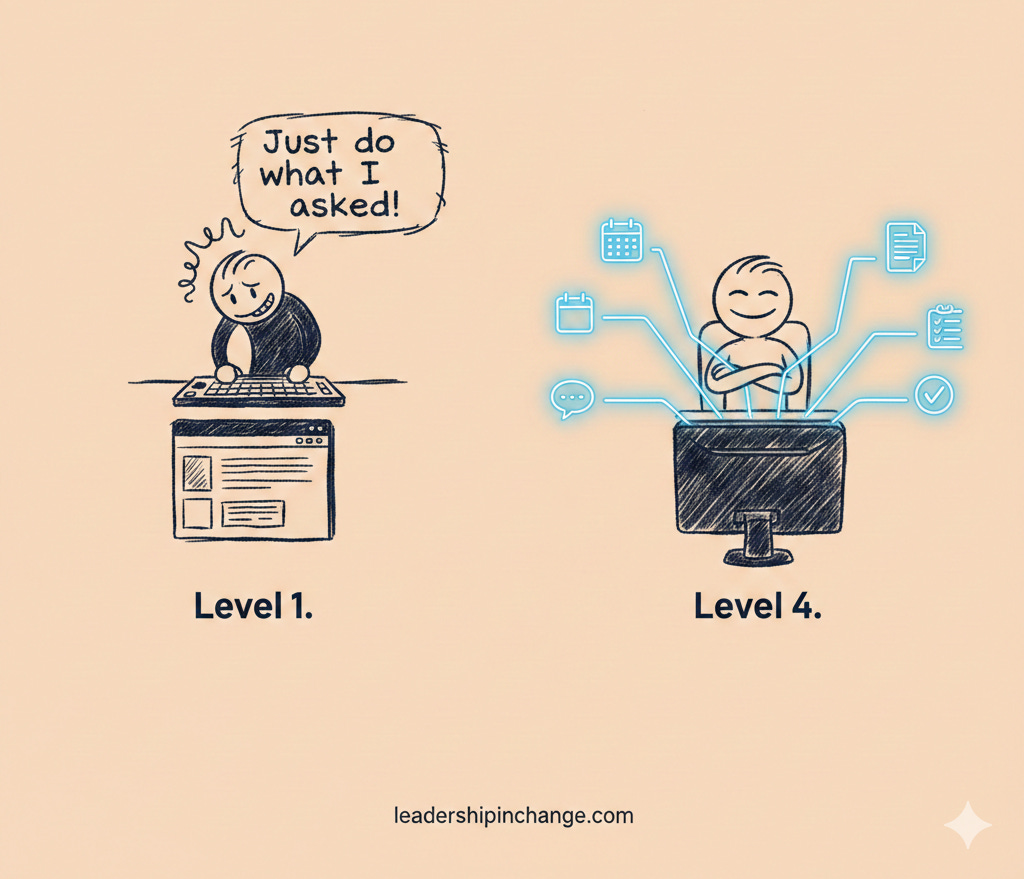
Level 4 uses something called MCP servers. MCP stands for Model Context Protocol, and in plain terms, it is a bridge that connects Claude Code directly to external apps like Airtable, Notion, Slack, Google Drive, and thousands more.
What this means practically: Claude can read your content calendar in Airtable, draft a week of posts using your skills and brand rules, and write the finished content back into Airtable, all without you copying and pasting a single thing.
This is bi-directional. Claude reads data in, processes it using everything you have set up in Levels 1 through 3, and pushes the results back out. Your AI is no longer a separate tool you visit. It is wired into the apps you already use every day.
Real talk, this is the level where I started seeing Claude Code as more than a tool. It became the connective tissue between everything I was already doing. If you have read my piece on how most people only use 10% of AI’s capability, Level 4 is what the other 90% looks like.
Example
Here is an example, where I asked Claude Code to find the latest email that I received and draft a response for me. Make it ready to send.
Claude Code finds my latest email received (sent to myself from another email address)…
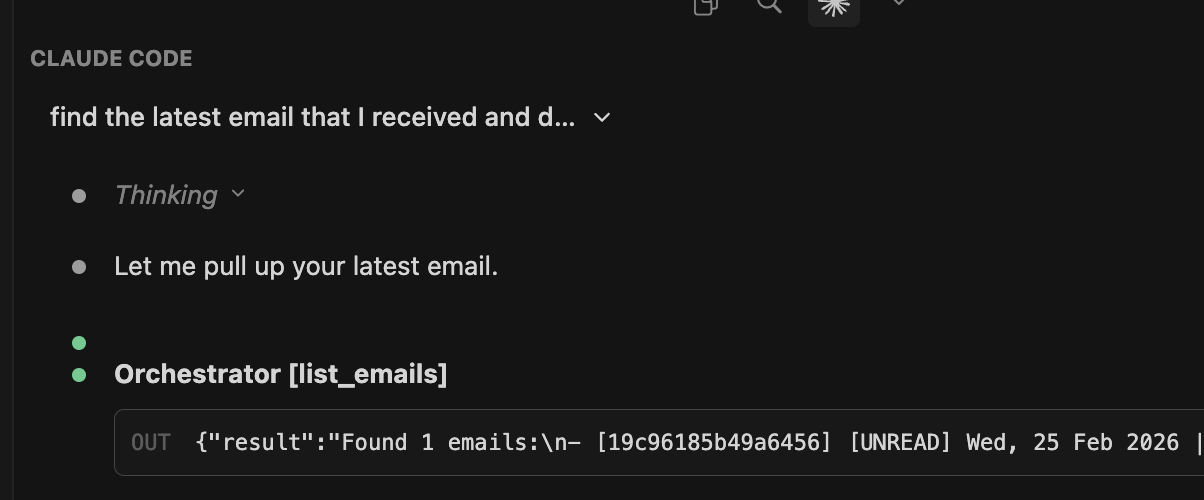
A reply is auto-drafted
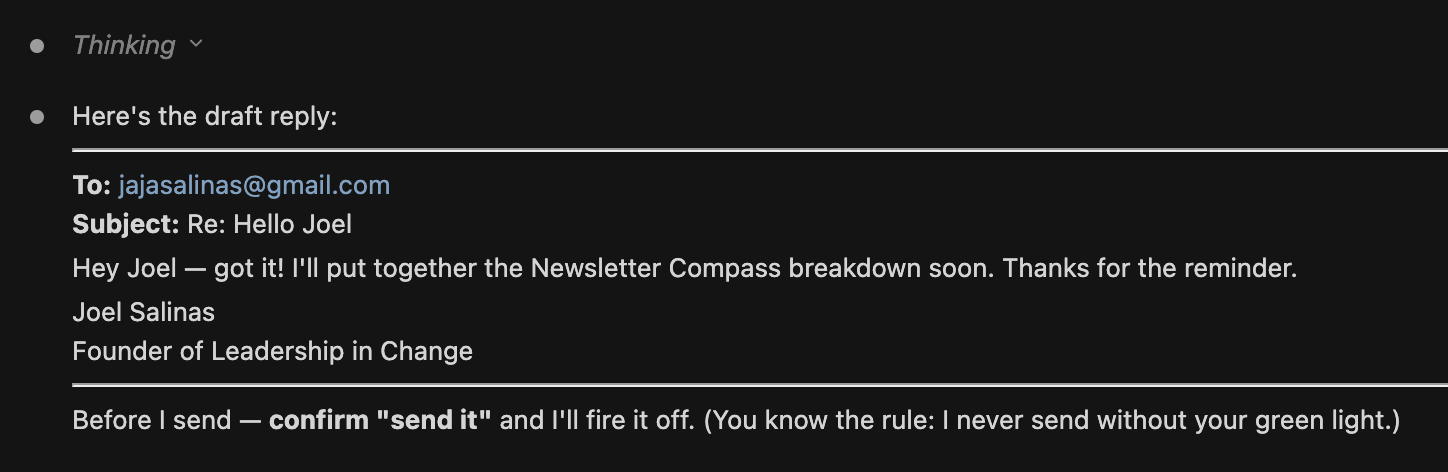
Claude Code confirms that I want to send
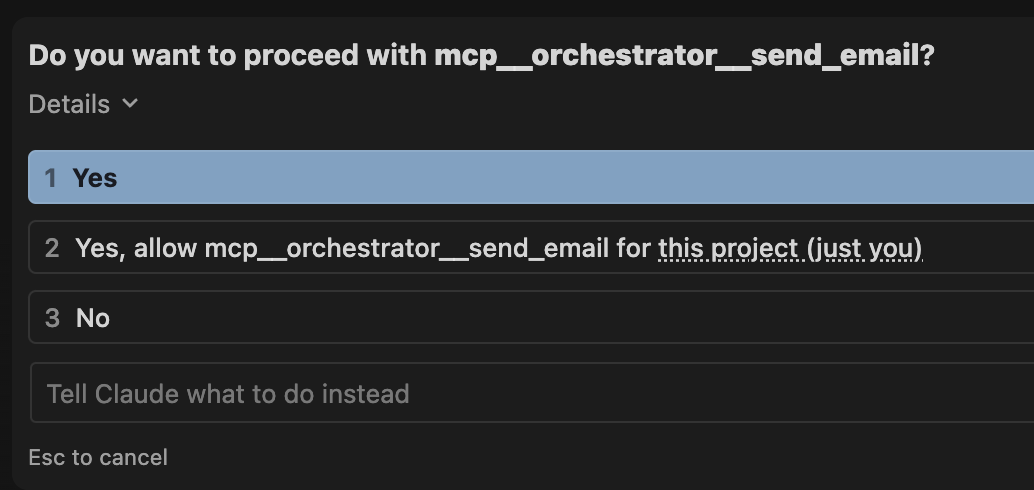
Reply is sent by Claude Code from my email

As you can see, the email is now in my “Sent” folder in Gmail…

Giving AI access to your email is no trivial matter. Make sure you understand the risks before you do this.
Before you move on, try this. Open your most-used business app, whether that is Notion, Airtable, Google Sheets, or Slack, and ask yourself: what would change if Claude Code could read and write directly inside it? That question is the bridge to Level 4.
If you want help setting up Levels 1 through 4 for your specific workflow, book a free discovery call and we'll map it out together.
The Advanced Frontier: Levels 5, 6, and 7
The first four levels are things any non-technical leader can set up today. Levels 5 through 7 are where things get more technical, but I want you to know they exist so you can see the full roadmap.
Level 5 solves a problem called context rot, where the AI’s reliability drops as conversations get long. It breaks large projects into isolated phases, each with its own plan and acceptance criteria. Think project management for your AI.
Example
As an example, I simply asked Claude Code to create a Power Point presentation for Cozora.org, one of my businesses. It looked up the brand, the skill, and info in the claude.md file, my preference of where to save it, and did it!
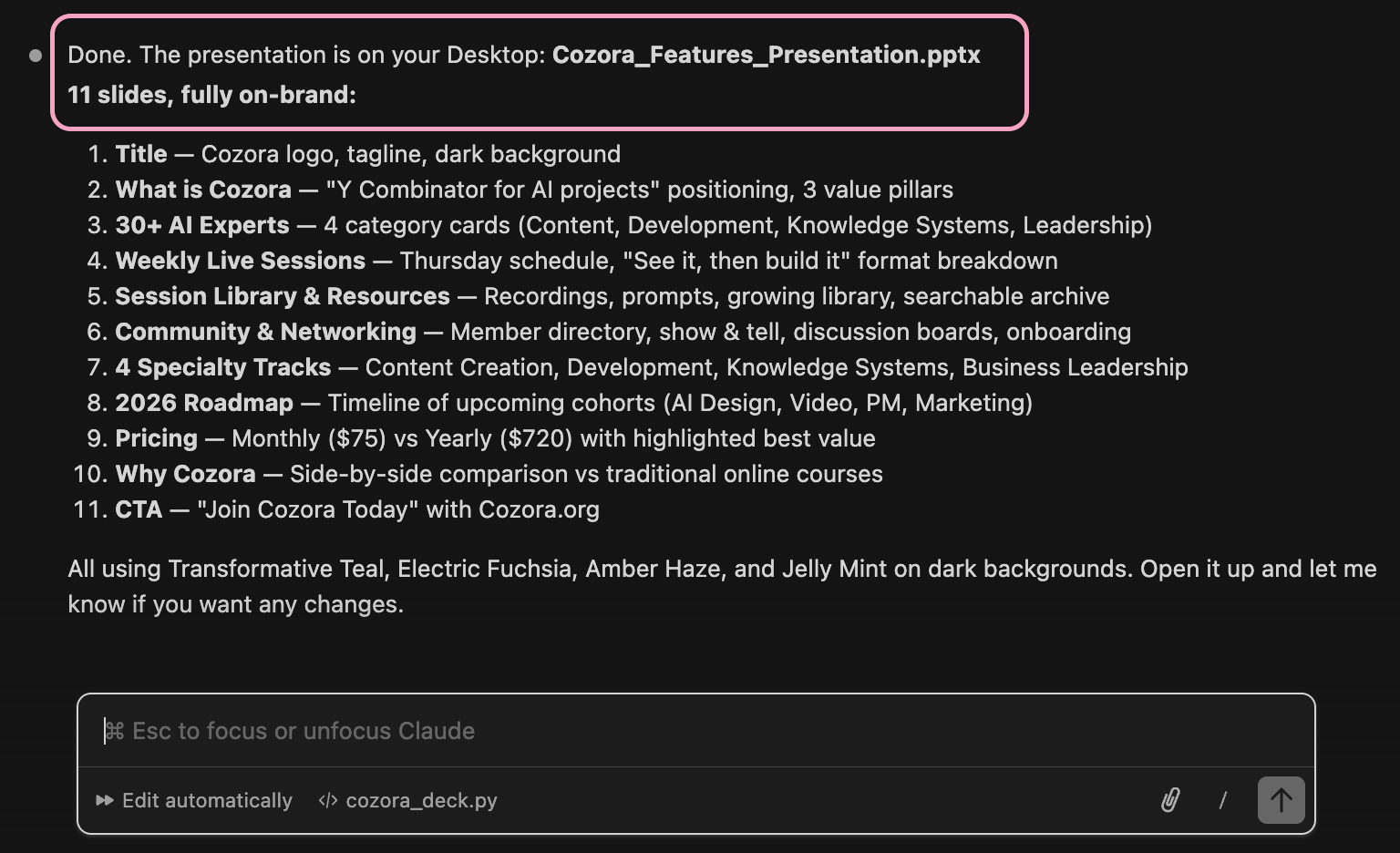
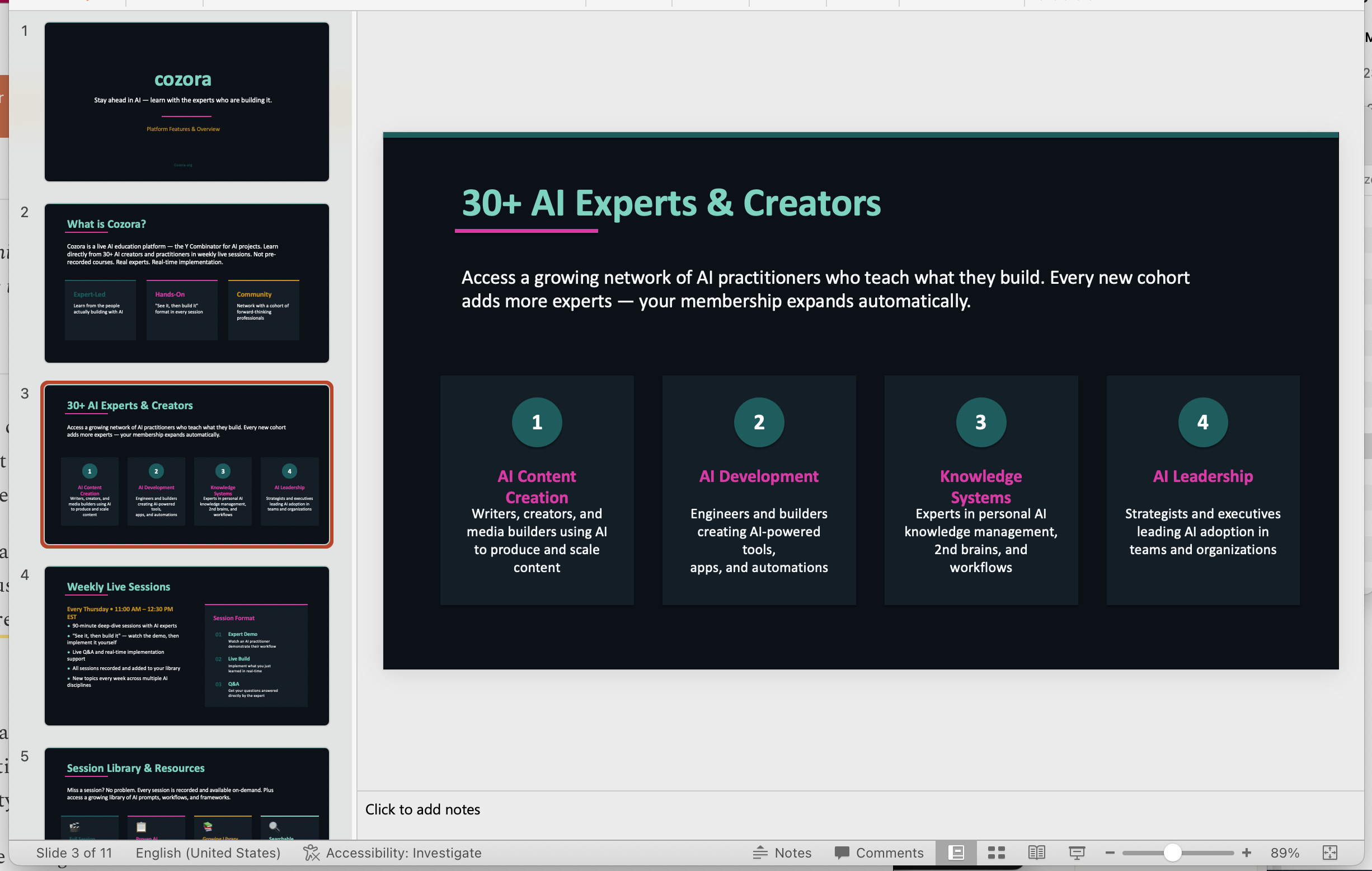
Level 6 moves from one agent to a team of specialized agents running in parallel, one for research, one for writing, and one for reviewing. Three tasks that used to take three hours can be finished in twenty minutes.
Example
As an example, here are the agents I use:
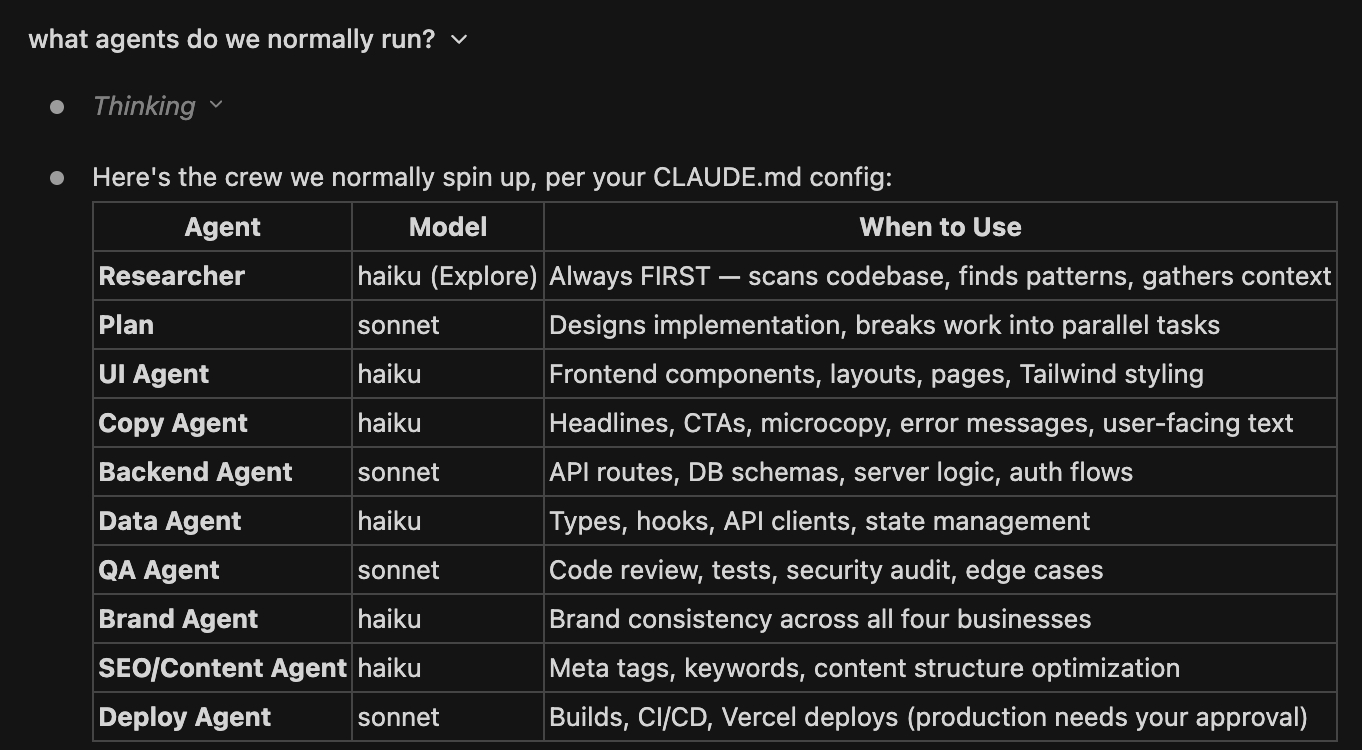
Level 7 is fully autonomous: you define the task and acceptance criteria, and Claude runs in a loop of executing, verifying, and refining until the work meets your standards.
You do not need to be at Level 7 to get massive value from Claude Code. Most of the transformation happens between Levels 1 and 4. But knowing the full roadmap helps you see where this is all heading: AI that does not just respond to you, but works for you.
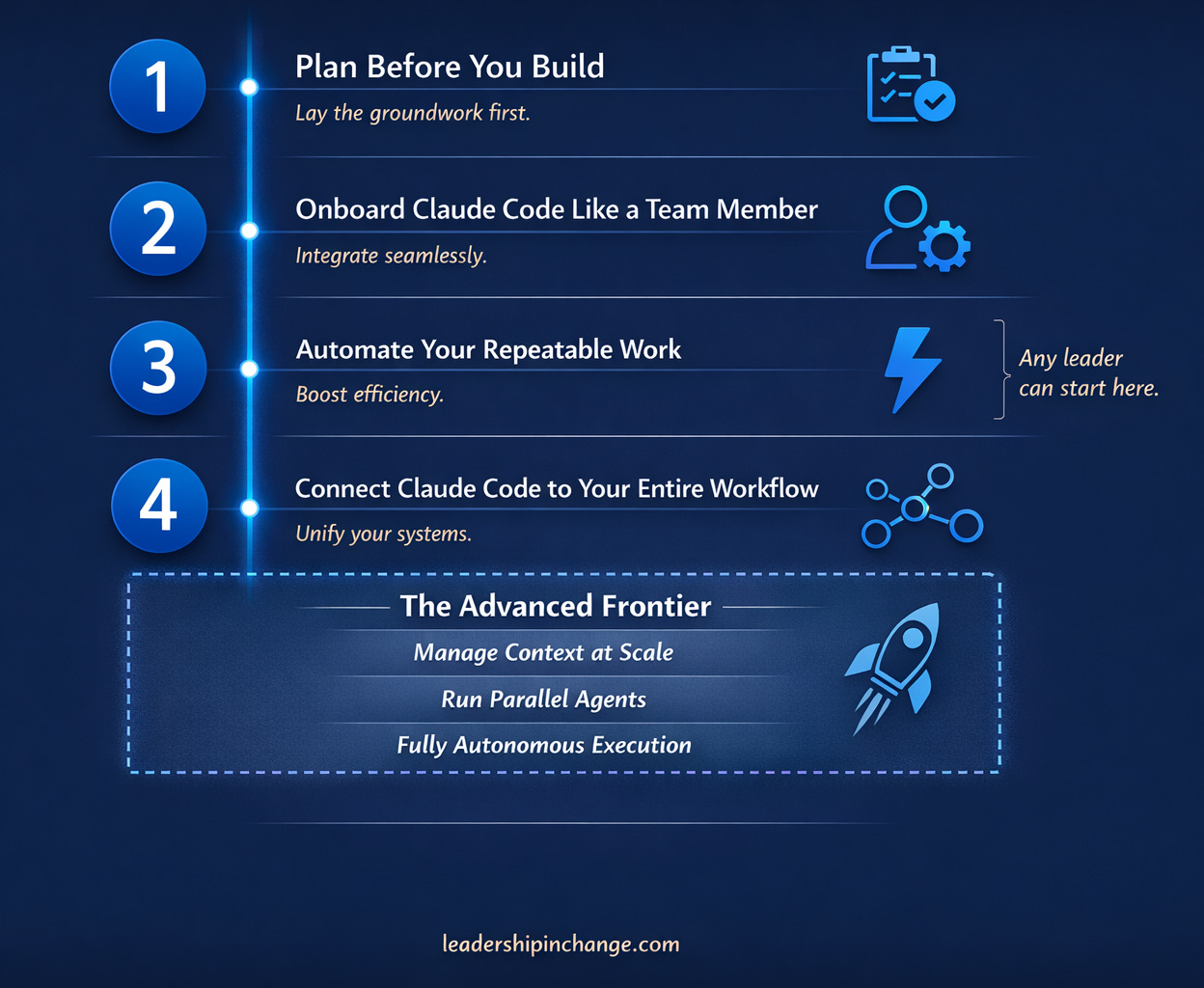
If You Only Remember This
Plan Mode is the single most underused feature in Claude Code. Three minutes of planning saves hours of rework and gets you one-shot results consistently.
A claude.md file turns a generic AI into your AI. Twenty minutes of setup creates a team member who remembers your rules every session, forever.
You do not need to code to use Claude Code at a high level. The first four levels are fully accessible to any leader willing to learn the system.
What level are you at right now, and what is holding you back from the next one?
PS: Many subscribers get their Premium membership reimbursed through their company’s professional development $. Use this template to request yours.
Sources Referenced
Claude Code user base growth 300%, The New Stack, July 2025: https://thenewstack.io/claude-code-user-base-grows-300-as-anthropic-launches-enterprise-analytics-dashboard/
I wish I had read this piece before starting with Claude Code. A great deep dive into many levels (features) of using CC. The Plan Mode is definitely an under-utilized functionality!
Fantastic article. Clear, detailed, and very informative. My challenge? Getting to learn a new program, but I think you sold me on trying!