


TL;DR: Cowork on Claude Desktop now lets leaders schedule AI tasks that run automatically on a timer, including morning briefings, weekly reports, and research sweeps, with no coding required. Scheduled tasks are available for all paid plans (Pro, Max, Team, Enterprise) starting at Claude Pro ($20/month). Setup takes about 15 minutes, and results wait for you whenever you open the app.
Think about how you started your morning today.
If you’re like most leaders I work with, you opened your laptop and immediately started reacting. Emails. Slack. Calendar. News. Thirty minutes gone before you made a single proactive decision (at least it happens to me)…
Now picture this:
You sit down, open Claude Desktop, and a full briefing is already waiting for you.
Your calendar summarized. The three emails that actually matter, flagged.
An industry headline your team should know about, explained in two sentences.
All of it generated and ready, no scrolling, no tab-switching, no warm-up.
That’s not a concept. That’s a feature called scheduled tasks in Cowork, and you can set it up today.
The timing here matters. More people are switching from ChatGPT to Claude right now (check out this post by Daria Cupareanu or this by Karo (Product with Attitude) for more on switching), than at any point since Claude launched. According to Appfigures Intelligence, Claude surpassed ChatGPT in daily US app downloads on February 28, 2026, and has stayed ahead since, hitting 149,000 downloads compared to ChatGPT’s 124,000 by early March.
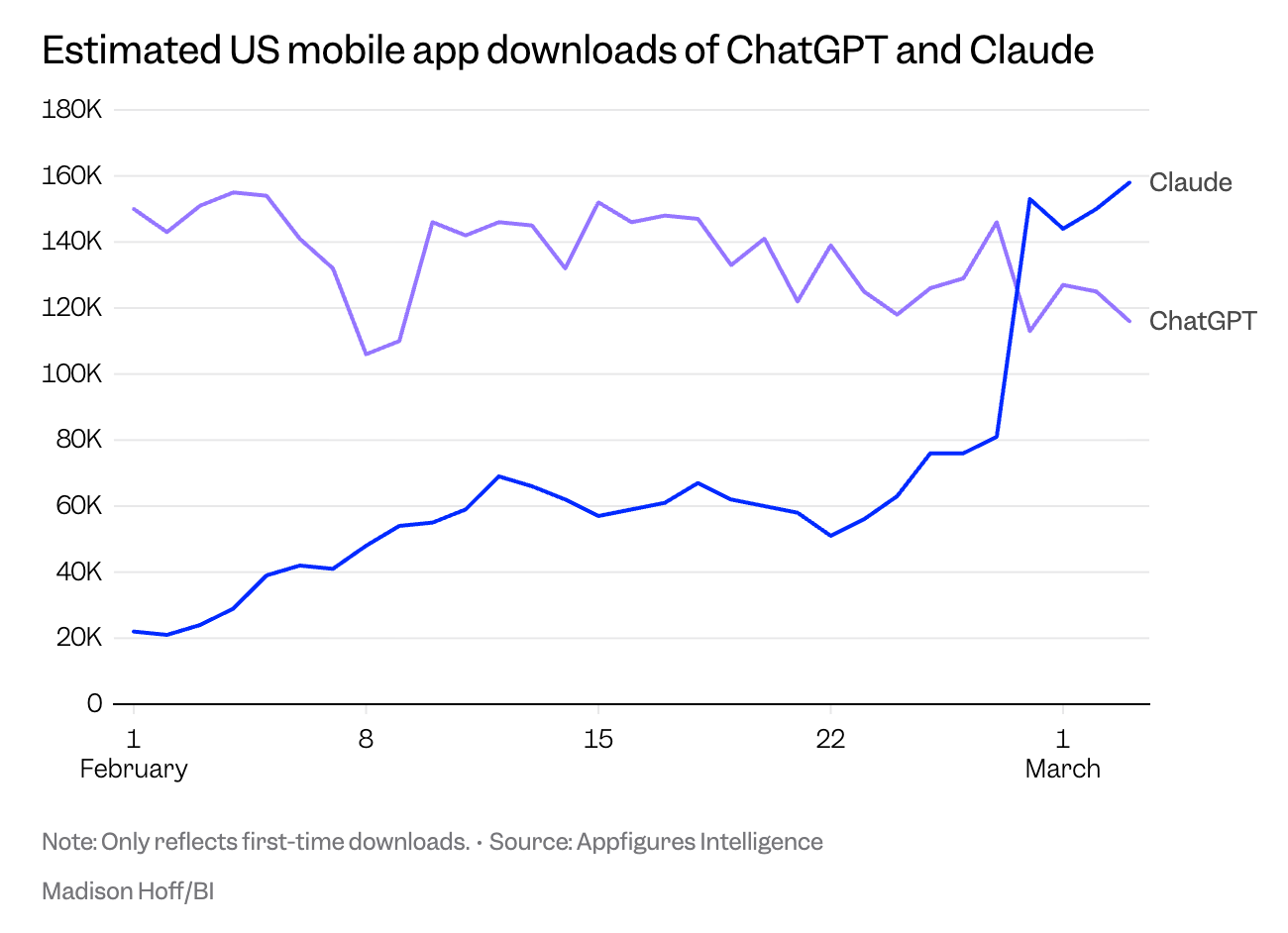
If you’re one of those new users (or you’ve been on Claude for a while and haven’t explored this yet), Cowork scheduling is the feature that turns Claude from something you open into something that works for you on its own clock.
In this post, you’ll learn:
What Claude Cowork scheduled tasks are and why they matter
How to set up your first scheduled task in about 15 minutes, step by step
Three specific tasks you can schedule today that save real time every week
Where to get 30 copy-ready prompts you can paste straight into Cowork and start using today
Quick Win (< 60 seconds) - You need: Claude Pro or Max ($20+/month), Claude Desktop, and 2 minutes for this one task.
Open Claude Desktop → Click the Cowork tab → Click Schedule in the sidebar → Click + New Task → Name it “Morning Headlines” → Paste this:
“Give me the top 5 AI and leadership news stories from the past 24 hours with a one-sentence summary of each.”
Set frequency to Daily → Save.
Next time you open Claude, the briefing will be waiting.
That is 1 of 30 ready-made prompts in the Premium Starter Kit. See all 30 →
A word from our partners, tools I love and use daily…
Jotform is a Leadership in Change partner, and I’m sharing them here because their AI does the same thing for forms that scheduled tasks do for your morning. You describe what you need in plain language, and Jotform AI generates it instantly: fields, conditional logic, structure, all of it. It won’t replace a custom-coded solution for complex workflows, but for feedback forms, event registrations, and lead capture, it’s my go-to tool, genuinely faster than building from scratch.
Leadership in Change readers get 50% off annual plans. Create a form with Jotform AI today.
What Scheduled Tasks Actually Are
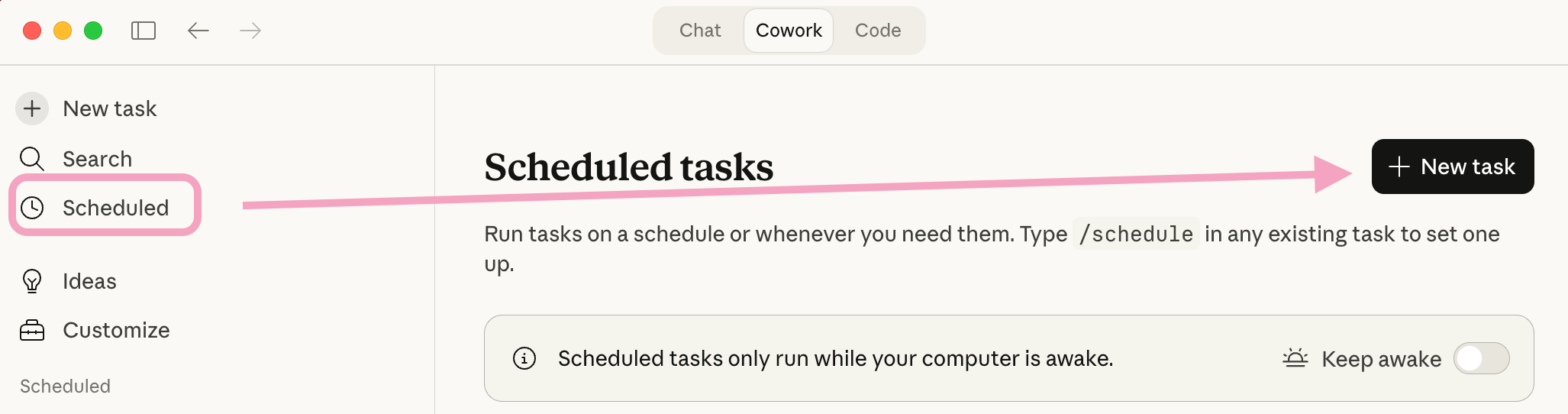
Scheduled tasks work exactly like they sound. You give Claude Cowork a set of instructions, pick a schedule, and it runs automatically at that interval. Every morning. Every Friday afternoon. Every Monday at 7 AM. Whatever you need.
Think of it like setting up a coffee maker. You prep it once, and it's ready when you need it.
Here's what makes this different from ChatGPT's scheduling: Scheduled tasks have access to the same capabilities as regular Cowork tasks, including connected tools, skills, and installed plugins. That means you can build multi-step workflows, not just ask a single question. Your morning briefing can check your calendar AND summarize emails AND pull industry news in one task (This works when you've connected the relevant tools to Claude, like calendar or email integrations through “connectors”).
And here’s the part that actually matters for leaders who aren’t engineers: you don’t need any technical skills to use this. No coding, no command line, no “cron jobs” (that’s a developer term for scheduled commands, and you’ll never need to touch one). It’s a sidebar menu with a few clicks.
If you’ve read my piece on how most people only use 10% of AI’s capability, this is a perfect example of the other 90%. Most Claude users don’t even know this feature exists.
The Constraint
Since this is NOT something that runs autonomously and independently (this takes much more technical skill), scheduled tasks only run while your computer is awake and the Claude Desktop app is open. If your computer is asleep or the app is closed when a task is scheduled to run, Cowork will skip the task, then run it automatically once your computer wakes up or you open the Claude Desktop again.
Cowork is included with all paid Claude plans starting at Pro ($20/month). Mac or Windows. If you can write a prompt, you have everything you need. Free users don't have access to Cowork, but if you're reading this newsletter, you're probably already on a paid plan or considering one.
This article gives you the framework. If you’re looking at your own workflow and wondering how to build more of these systems, there are two ways I can help.
Which Sounds Like You?
“I need systems, not just ideas” -> Premium members get a 30-prompt Notion dashboard with every scheduled task category covered, filterable and copy-ready. Start here
“I need this built for my context” -> AI coaching, custom workflow automation, strategy sessions. Message me or book a free call
How to Set Up Your First Scheduled Task
The whole setup takes about 15 minutes the first time. After that, adding new tasks takes about two minutes each.
Step 1: Open the sidebar. In Claude Cowork, click Schedule in the left sidebar, then select + New Task.
Step 2: Name it. Something you’ll recognize at a glance. “Monday Morning Briefing” or “Friday Team Digest” works.
Step 3: Write your prompt. This is where the real value lives. Be specific about what you want Claude to do and how you want the output formatted. The better your prompt, the more useful the output. (The same principles from my piece on getting 90% better AI responses with the right setup apply here.)
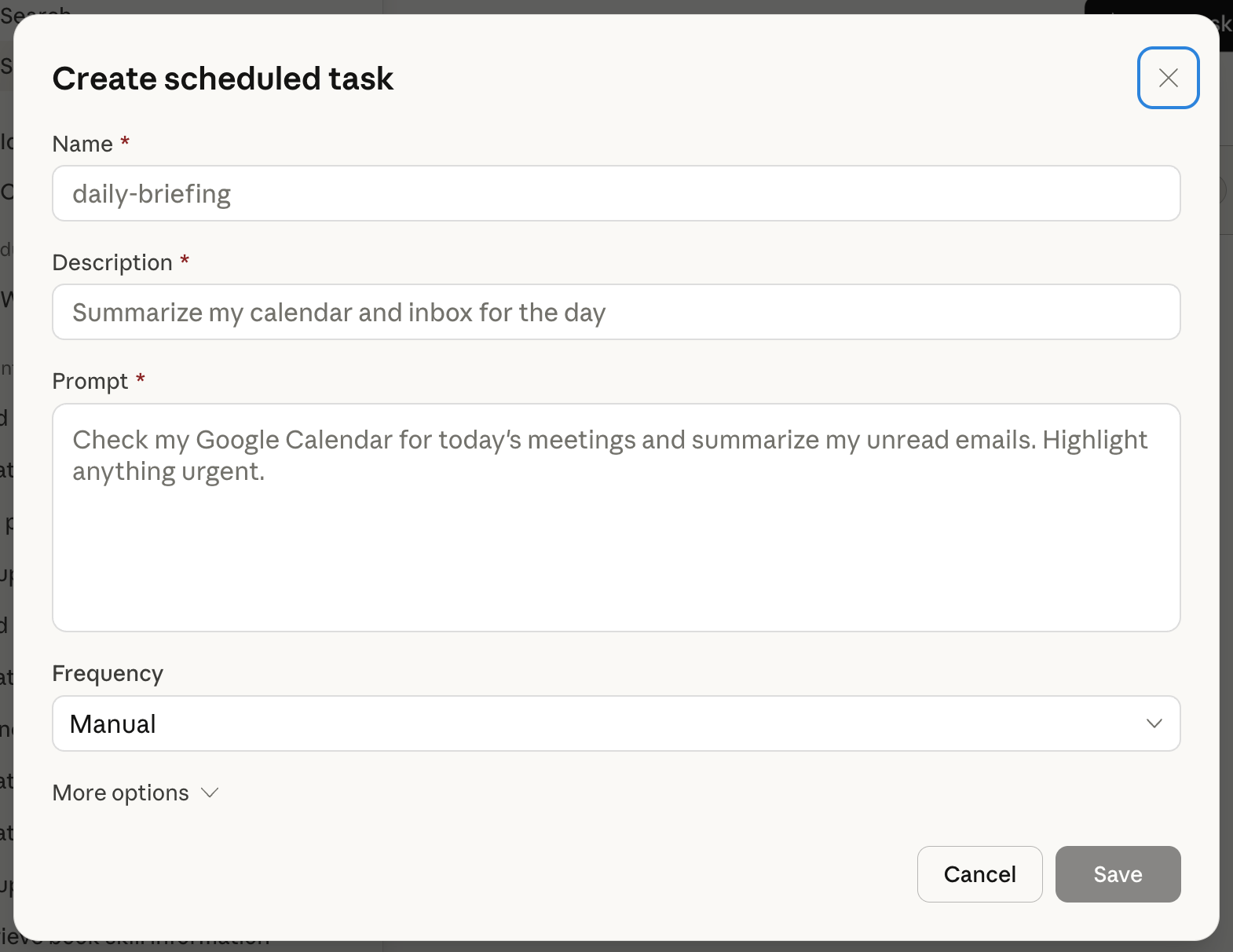
Step 4: Set the frequency. Choose from Hourly, Daily (defaults to 9:00 AM), Weekdays, or Weekly.
Step 5: Save. That’s it. Claude will run the task on the schedule you set, and the results are there whenever you check in.
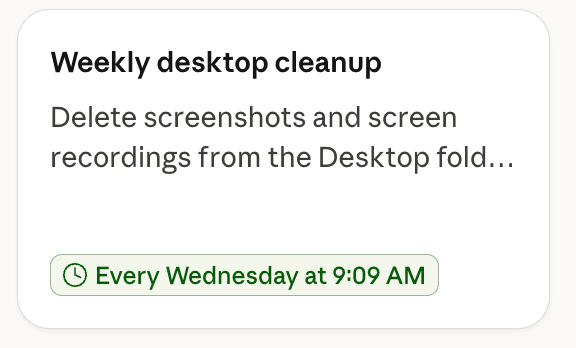
As an example, here is one of my weekly tasks! Desktop screenshot cleanup…
Three Tasks Worth Setting Up This Week
You can schedule anything you’d normally ask Claude. But if you’re wondering where to start, these three cover a lot of ground.
1. The Morning Briefing
Frequency: Daily, 6:30 AM (catches up when you open Claude if your computer was off)
Imagine sitting down every morning to a clean summary that tells you what your day looks like, what needs your attention, and what happened overnight in your industry. No scrolling, no tab-switching, no 30-minute warmup.
Sample prompt:
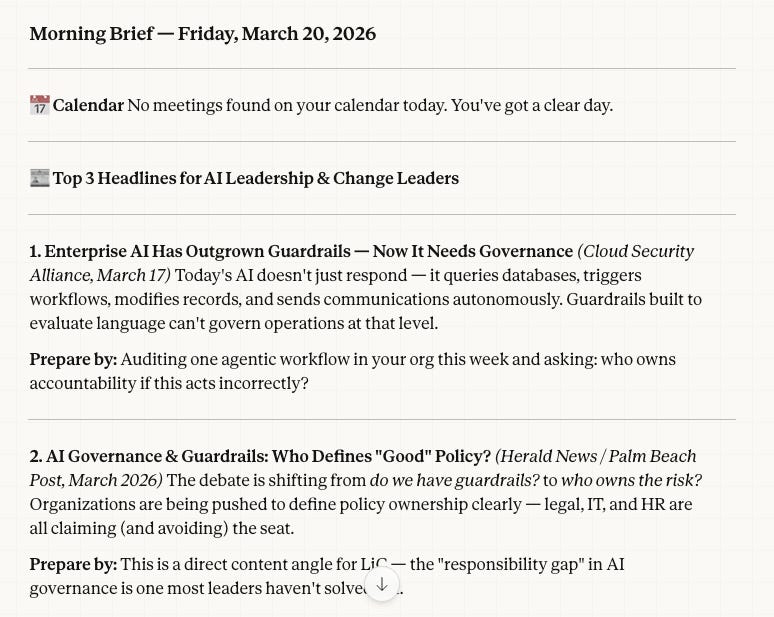
“Review my calendar for today. For each meeting, give me a one-sentence summary of what it’s about and one thing I should prepare. Then list the top 3 headlines in [your industry] from the past 24 hours, with one sentence on why each matters for a senior leader.” (Requires Calendar MCP integration).
This one task replaces the 20-30 minutes most leaders I coach spend every morning context-switching between apps to figure out what their day looks like.
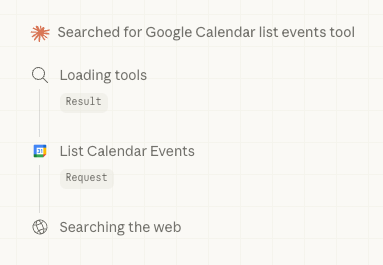
Note: This requires Calendar MCP connection to Claude in Settings - Connectors
Here’s Claude thinking…
Followed by the output:
2. The Desktop Cleanup
Frequency: Weekly, Friday at 4:00 PM
How many screenshots, random downloads, and “temp” files are sitting on your desktop right now? Most of us have desktops that look like a dumpster by Friday, filled with screenshots and random files. This task gives you a clean start every week.
Sample prompt:
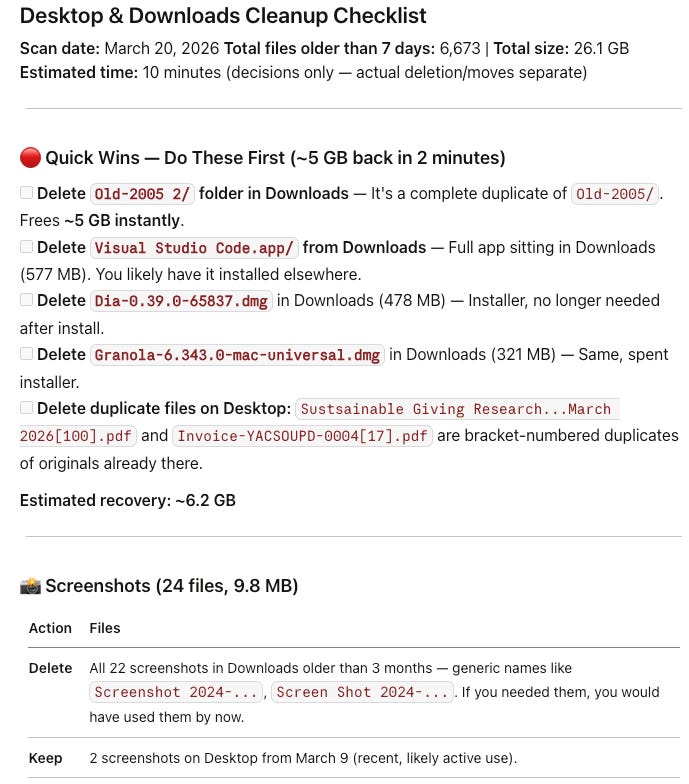
“Scan my Desktop and Downloads folders. List every file older than 7 days, grouped by type (screenshots, PDFs, documents, images, other). For each group, recommend which files to archive, which to delete, and which to keep. Give me the summary as a checklist I can work through in 10 minutes.”
You review the list, drag what matters into the right folders, and trash the rest. Five minutes of effort instead of the Sunday night “I should really clean this up” guilt that never turns into action.
Note: Requires file system access via Claude Desktop. Claude can read your local folders when you grant permission.
Here are my results…
3. The Competitor Watch
Frequency: Weekly, Monday at 7:00 AM
Starting the week informed about what’s happening in your space used to require a dedicated analyst or an expensive monitoring tool. Now it runs on a schedule while you sleep.
Sample prompt:
“Give me a competitive intelligence brief for [your industry or list 3-4 competitors by name]. What did they announce, publish, or launch in the past 7 days? Summarize each item in one sentence and flag anything I should respond to or bring to my team.”
This is the kind of task that most leaders know they should be doing but never find time for. Scheduling removes the willpower from the equation entirely.
Here is part of mine, focused on the nonprofit I am part of, World Relief…

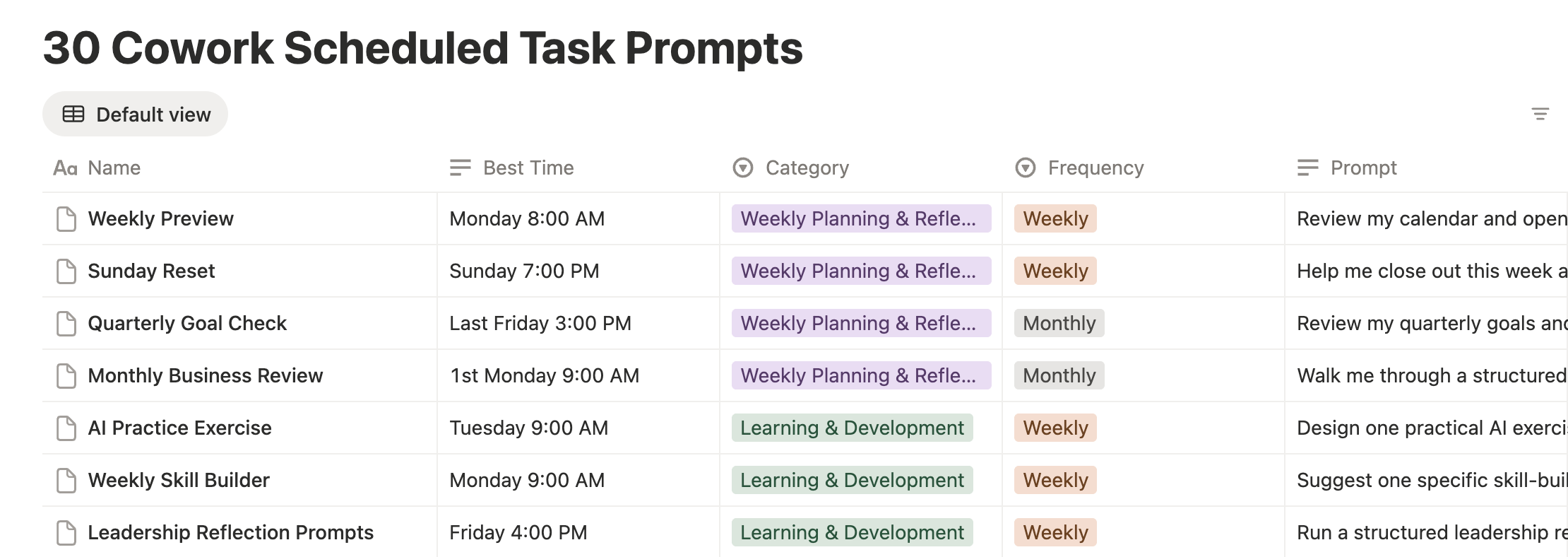
I built a filterable Notion dashboard with 30 copy-ready Cowork scheduled task prompts across 7 categories:
morning briefings
email and communication
competitive intelligence
content creation
team updates
learning and development
weekly planning.
Every prompt includes the recommended frequency, best time to run, and exact text you can paste straight into Cowork. Replace the bracket placeholders with your context and you are live in two minutes.
It is included with your Premium membership.
Get the 30-Prompt Starter Kit… here’s a glimpse.
Build the Mansion One Brick at a Time
I want to leave you with something I’ve been thinking about a lot lately.
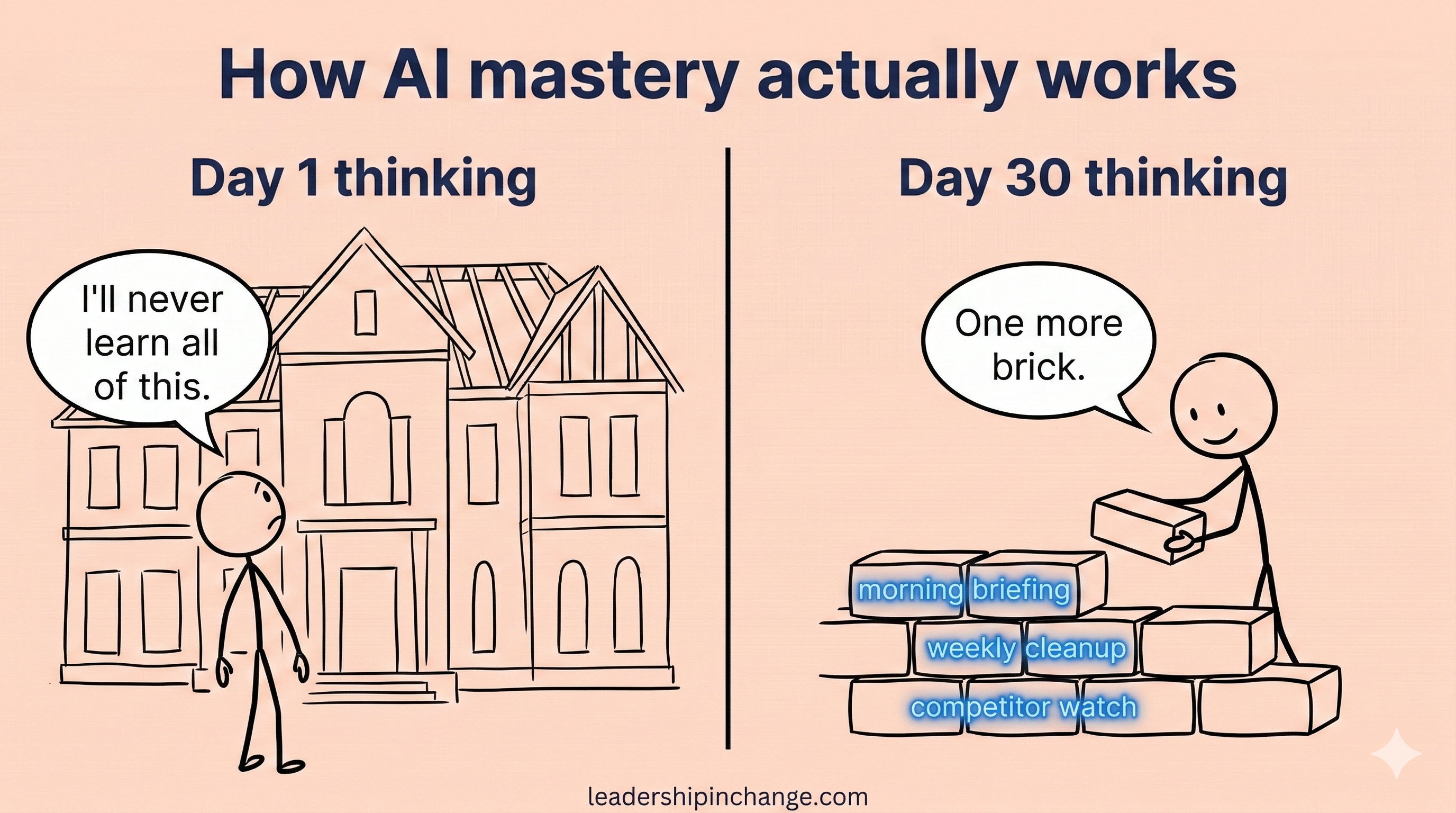
AI is like a mansion that keeps expanding. New rooms every month. New wings, new floors, new features that didn’t exist last week. And nobody, not even those of us who work in this space full time, is going to explore the whole thing in one weekend.
The leaders who actually get lasting value from AI aren’t the ones who tried to learn everything at once. They’re the ones who laid a few bricks every day. One prompt that worked. One workflow they automated. One habit they built on top of another.
I tell every coaching client the same thing: don’t try to build the mansion. Just lay today’s brick.
Scheduling is one of those bricks. And honestly, it’s a big one, because it changes the relationship. For the first time, Claude doesn’t just respond to you when you ask. It works for you, on its own clock, whether you’re at your desk or not.
If you’ve been using ChatGPT and you’re curious about making the switch (you’re far from alone, more people moved to Claude in the last two weeks of February 2026 than any period in the app’s history), scheduling is a great feature to start with. And if you’ve been on Claude for a while, this might be the capability that shifts how you think about what AI can do for your day.
Stop reading. Go set up your first scheduled task right now while this is fresh in your mind. The morning briefing takes five minutes.
If you only remember this:
Claude Desktop now runs tasks on a schedule, automatically, with no coding required. Set up a morning briefing, a desktop cleanup, or a competitor watch in about 15 minutes.
AI mastery is built one brick at a time. Scheduling is one of the biggest bricks you can lay, because it’s the first time your AI works without you asking.
What’s one recurring task you waste time on every week that Claude could handle on a schedule? I’d love to hear what you’d automate first. Hit reply or drop a comment.
Questions Leaders Are Asking
How do I set up a scheduled task in Cowork? Open Claude Desktop, click the Cowork tab, click Schedule in the sidebar, then select + New Task. Name it, write your prompt, choose a frequency (hourly, daily, weekdays, or weekly), and save. Your first task takes about 15 minutes to set up. Every task after that takes about two minutes.
Do scheduled tasks run when my computer is off? No. Cowork scheduled tasks only run while your computer is awake and Claude Desktop is open. If your computer is asleep or the app is closed when a task is scheduled, Cowork skips it and catches up automatically the next time you open Claude Desktop. By the time you have poured your coffee, your briefing is ready.
Do I need coding skills to use Cowork scheduling? Not at all. The entire setup is point-and-click through a sidebar menu in Claude Desktop. If you can write a prompt, you can schedule a task. There are command-line options for developers who want them, but the Desktop interface was built for non-technical users.
What can a scheduled task actually do? Scheduled tasks have access to the same capabilities as regular Cowork tasks, including any connected tools, skills, and installed plugins. That means a single scheduled task can run multi-step workflows, not just answer a single question. If you have connected your calendar, email, or file system to Claude, your scheduled tasks can use all of those.
SOURCES REFERENCED
Appfigures Intelligence: U.S. Downloads of Claude and ChatGPT Mobile Apps, February 1 to March 2, 2026 (App Store & Google Play, estimated first-time downloads)
Anthropic Claude Desktop release notes, early 2026 (scheduled tasks feature)
Claude Code documentation: Scheduled Tasks Setup Guide (March 2026)
Loads of great ideas! Thank you Joel! 🤗
I really need to look into Claude more. I tried it as a writing assistant alternative to ChatGPT and was not impressed, but the hype is now getting to me.