


TL;DR: Claude Cowork can organize the files on your computer on a weekly schedule if you give it a written rulebook first. The rulebook answers three questions: where each file goes, how it gets named, and when the AI has to stop and ask you. Add guardrails (plan first, trash instead of delete, leave anything uncertain) and the cleanup runs without you.
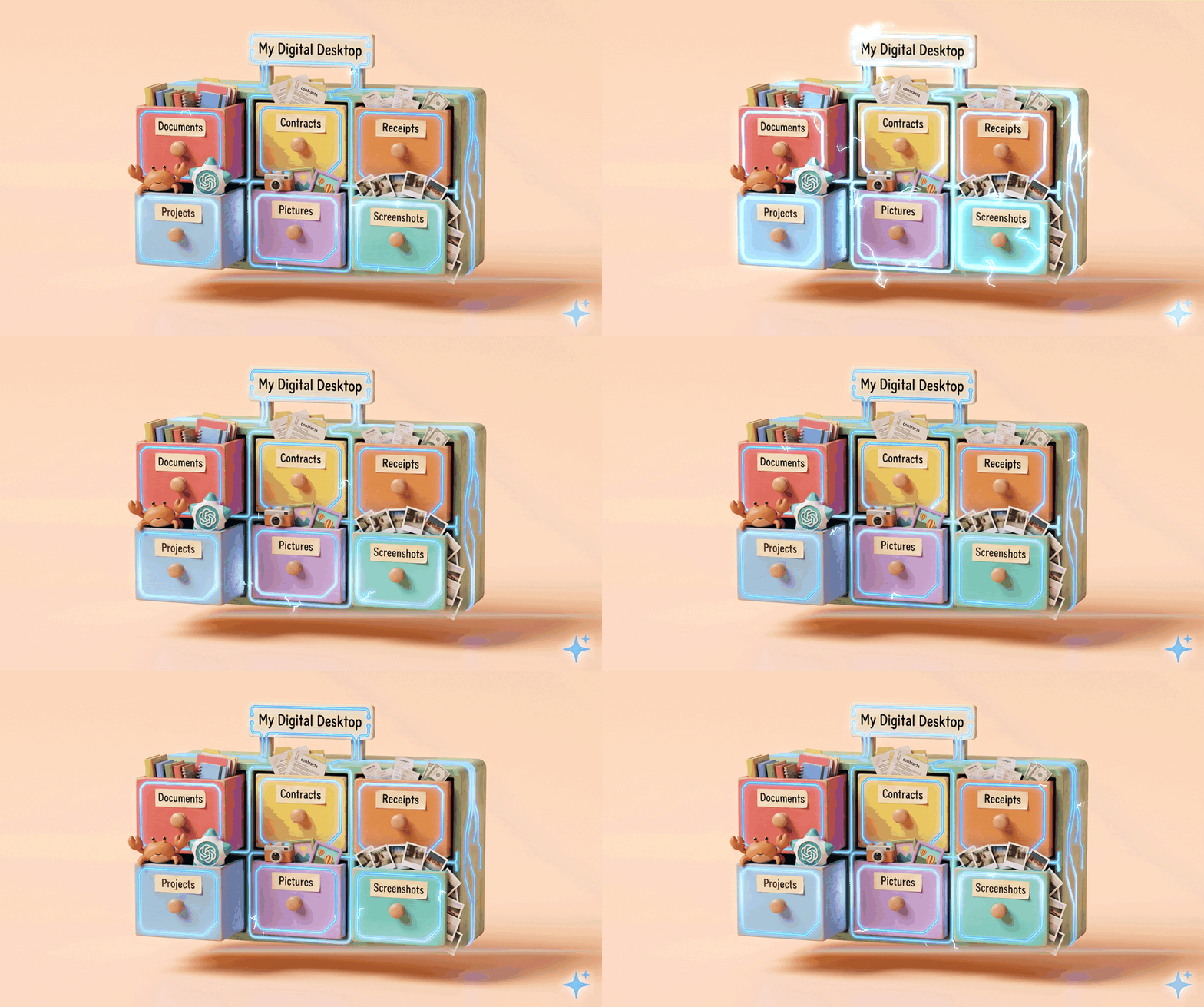
I think I bought a certain socket wrench size three times, because every time I need it, I cannot find it. By the time I find it, I no longer need it, all because I didn’t take the time to organize it.
Every day that I don’t organize it and another project goes by is extra time. It’s extra work later on. It’s also what happens to my desktop. All of my screenshots go in there. I think for months now I’ve been pulling the same documents out of the Downloads folder because I never take the time to pull them into the respective folder where they’re supposed to go.
That same thing happens digitally, and obviously it’s so much worse. Digital files don’t physically take space, so the mess can grow until the memory is full, which is a lot. I do a search to find whatever I’m missing, but then what happens when the name is not accurate? What happens when the name of a document is 12335kws.pdf?
I need a system.
Actually, I need an assistant that could do all this. Well, that’s what Claude does for me, and I’m going to teach you how to do this for yourself here.
Below you’ll find the three-part rulebook I gave Claude (where files go, how they’re named, and when it has to stop and ask me), the six guardrails that keep it from ever losing something I need, the step-by-step setup in Claude Cowork, and the full rulebook to copy into Claude, ChatGPT, or Gemini.
What You’ll Walk Away With
A rulebook you can copy today that tells any AI where your files go and when to ask you first
A weekly cleanup running in Claude Cowork that handles what it’s sure about and hands you a short list of the rest
What my Friday cleanup already does
I set up a scheduled task in Claude Cowork (the part of Anthropic’s Claude desktop app that can work directly with the files on your computer) that runs every Friday at 9am and cleans up my Desktop. It moves screenshots to the trash, files any contract into a folder for that client, moves other documents only when it’s confident where they belong, and hands me a “Needs me” list of everything else.

Its first run, the evening I set it up on September 30, trashed 38 screenshots, filed one contract and five documents, and left 13 files where they were. Those 13 were the ones it couldn’t place with confidence, so it didn’t guess. It told me. And it has plenty left to do: on October 7, my Downloads folder still had plenty of loose files in it.
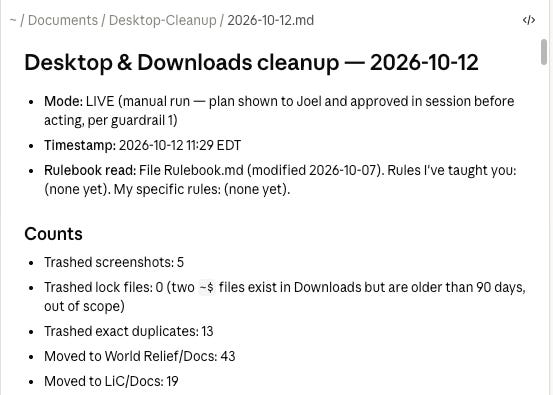
And a snapshot of what was organized, moved, or trashed:
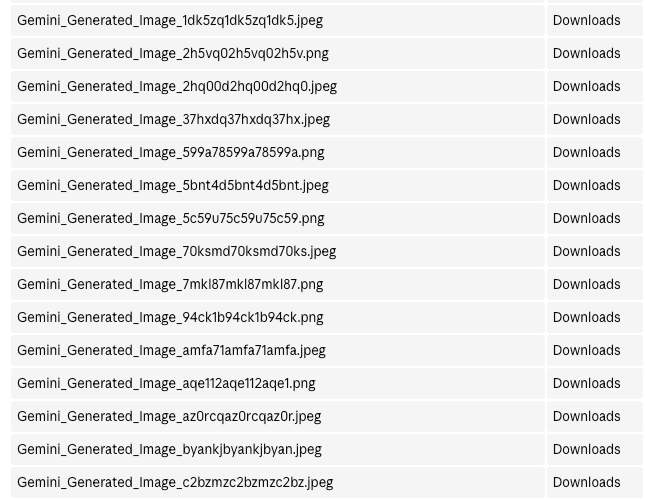
Why the rules matter more than the cleanup
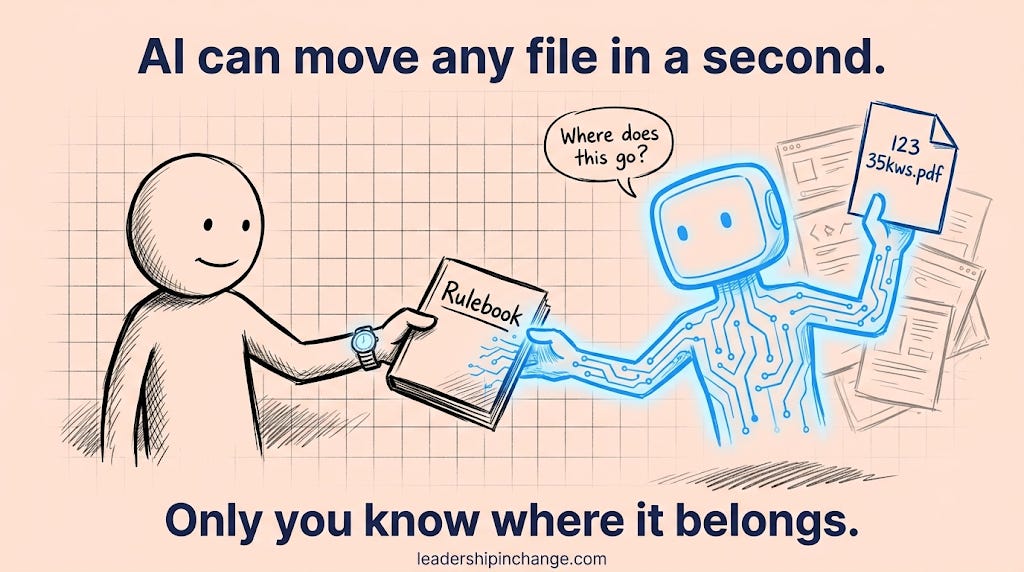
Moving files is the easy part. Claude can move a thousand files in the time it takes me to find that socket wrench. What it can’t do on its own is know that a signed contract belongs in that client’s folder, or that a bank statement should never be touched until I’ve looked at it.
That’s judgment, and it has to come from me. So before Claude touched anything, I wrote the rules down once, in a plain text file it reads every single time it runs. It’s the same idea as my AI Do-Not-Touch List: decide ahead of time what AI never decides on its own.
Part 1 of the rulebook: where files go
I organize by who the work is for first, then by what kind of file it is:
Company: one folder for each business
Client: one folder for each client inside that company
Docs, Screenshots-Media, and Projects inside every client folder
Personal: the same three folders for everything that isn’t work
The rulebook tells Claude to read the file itself, not just its name, and to look for a company, a client, or a person it can tie to exactly one folder. One match, it files it. Two matches or none, it asks me.
Part 2: how files get named
Remember 123 35kws.pdf? The folder already tells Claude who a file is for, so the name only has to say what it is and when it matters:
Records of a moment (receipts, invoices, signed contracts, reports): date first, then what it is.
2026-10-07 Signed SOW.pdfThings I keep and reuse (templates, guides, brand files): just a plain description.
Contract Template.docxProject folders: year and month, then the name.
2026-10 Website RebuildVersions: v2, v3, never “final.”
And one more rule: Claude never renames anything that’s already sitting in a client folder unless I ask.
Part 3: when Claude has to stop and ask
These are the guardrails, and they come before speed every time:
Show me the plan first, until it earns trust. When I run it by hand, it shows me the plan first: current name, new name, where it’s going, and why. On the Friday run, it does what it’s sure about and reports the rest.
Never permanently delete anything. “Delete” means the trash, where I can get it back.
Never overwrite. If the name is taken, add a (2).
When in doubt, leave it. A wrong move is worse than no move.
Always ask about the sensitive stuff: bank and tax documents, anything with an account or ID number, and anything I changed in the last 24 hours.
Don’t reorganize what’s already organized. Putting a file into a client folder is fine. Pulling files out or rearranging what’s in there isn’t.
And when I correct it, I say “remember this,” and Claude writes the correction into the rulebook so I never have to say it twice.
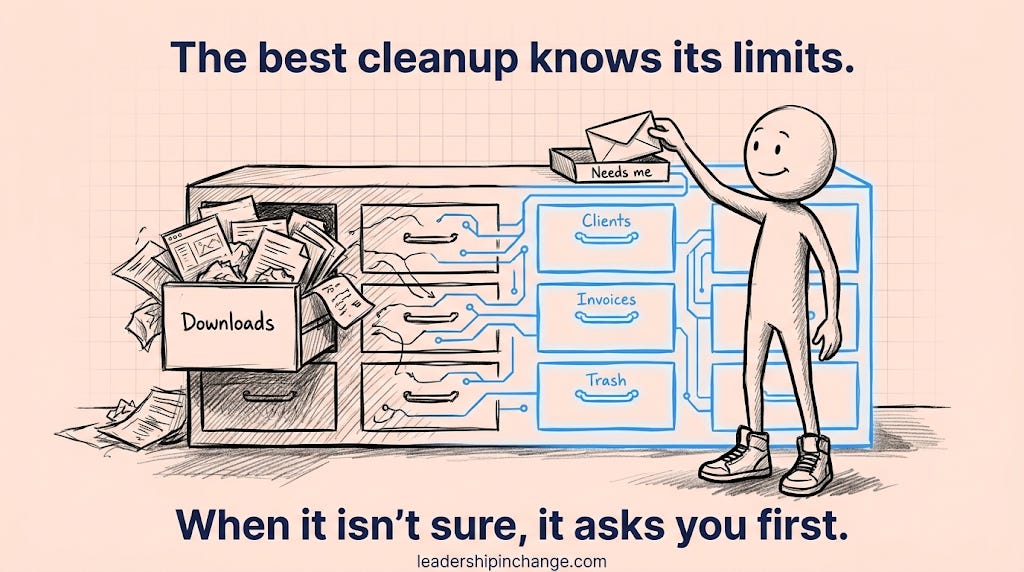
Stop reading for a second and open your Downloads folder. Count how many files you’d have to open just to know what they are. That number is what this setup gets rid of.