



TL;DR: Claude is Anthropic’s AI assistant, and two of its features change how leaders work. Connectors let Claude read your Gmail, Drive, and Notion directly. Artifacts let Claude build working tools inside the chat. This no-code guide gets you using both in under 20 minutes.
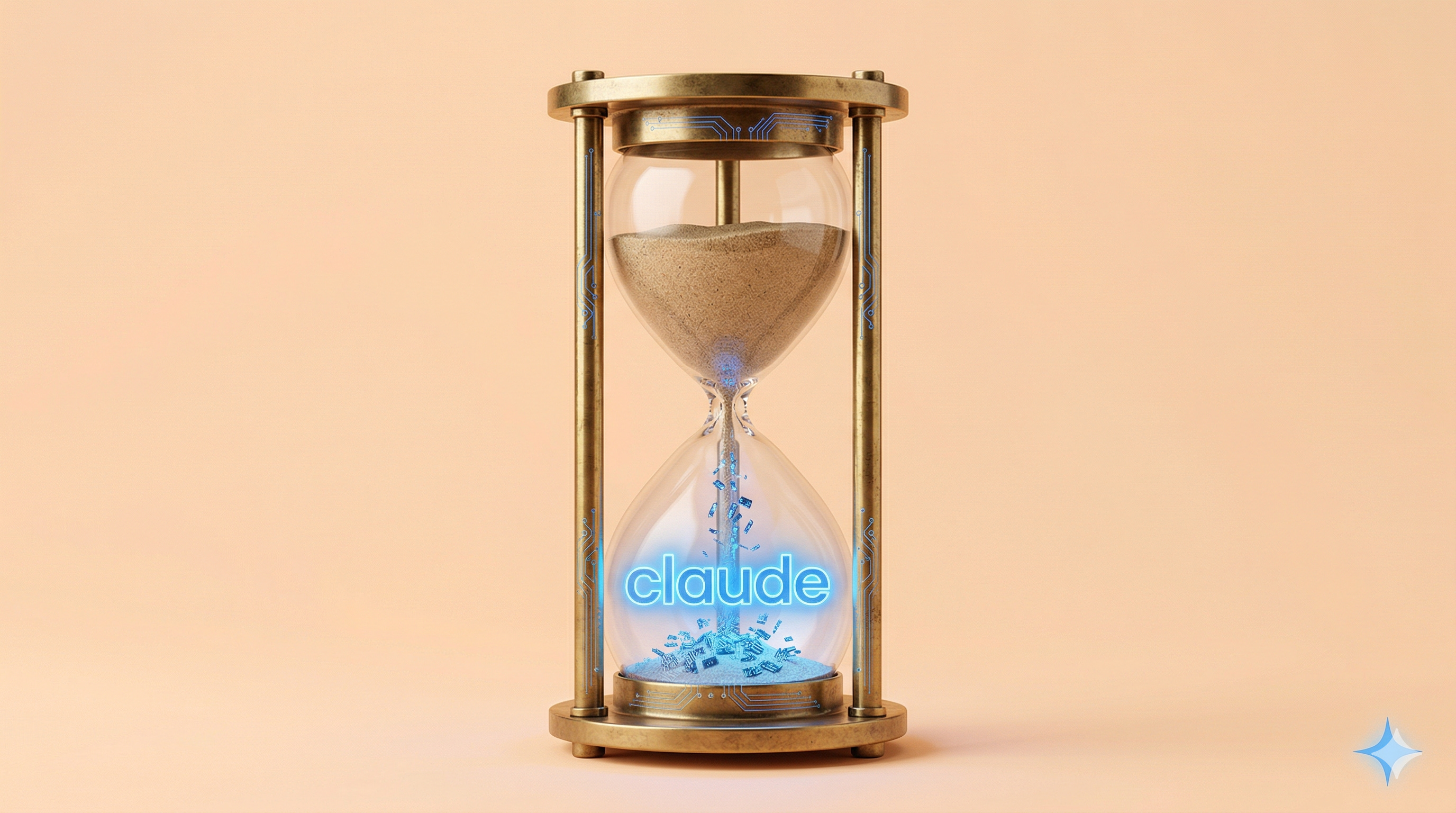
One prompt. Claude reads a document sitting in your Google Drive, pulls live company data through a second connector, filters the results, and hands you a ranked outreach list. An hour of work in thirty seconds.
☝️ That is the moment most leaders realize Claude is not just another chatbot.
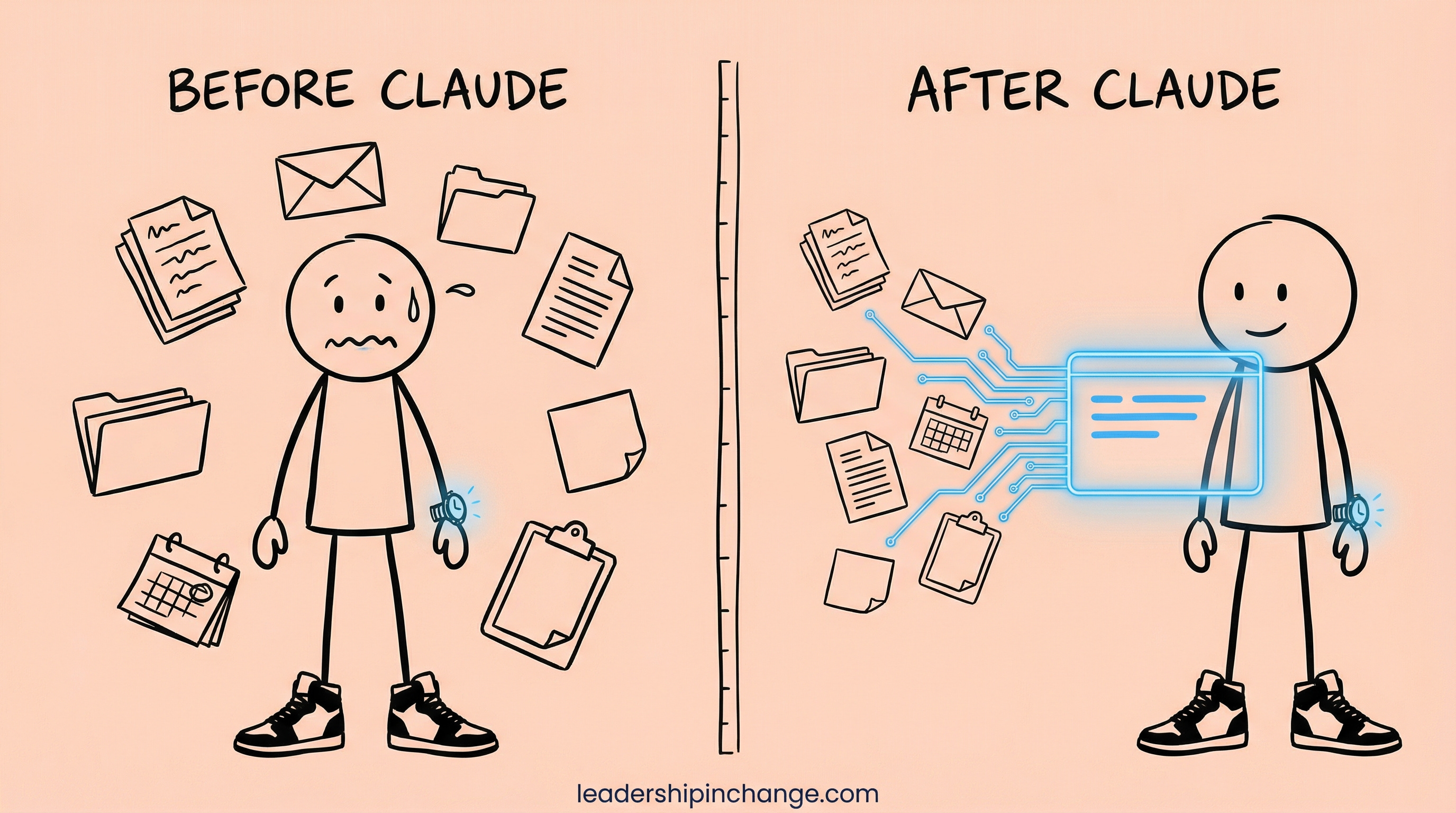
Today’s piece is by Gencay, a mechanical engineer turned AI consultant who runs LearnAIWithMe and has spent the past three years building AI systems for clients across industries. He writes the kind of practical, no-code guides I wish I had when I first started teaching leaders how to actually use these tools.
If you are Claude Curious… this is for you.
Over to Gencay.
— Joel
Learn 80% of Claude in Under 20 Minutes - Part 1
I chose Claude as my main tool. Not because of brand loyalty.
Because after testing every major AI assistant on the market, Claude consistently delivered the best results for real work.
Writing. Research. Building tools. Managing workflows.
Most guides give you a feature list. I’ll give you the features, the real use cases, and the workflows I actually use every day.
In this guide, we’ll start with Claude from the very beginning. We won’t just talk about the basics; we’ll build real apps and connect Claude with the real world.
No code. No engineering background required.
Just the features that matter, explained so you can use them today.
What is Claude?
If you’ve used ChatGPT, you already understand the concept.
Claude is Anthropic’s AI assistant.
You type. It responds. Same basic idea.
Think of it as ChatGPT’s quieter, sharper colleague who’s better at reading long documents, following complex instructions, and building things for you right inside the chat window.
Let’s start with the fundamentals. To do that, we’ll use claude.ai.
Connectors: Give Your AI Access to the Real World
Here’s the problem with every AI assistant: you have to copy-paste everything. Your emails. Your calendar events. Your documents. Every conversation started from zero.
Connectors changed that.
In one sentence: connectors let Claude plug directly into tools you already use, such as Gmail, Google Calendar, Google Drive, Notion, and Slack, so it can read your actual data without lifting a finger.
You don’t export anything. You don’t paste anything. You connect once, and Claude sees it.
How to set it up
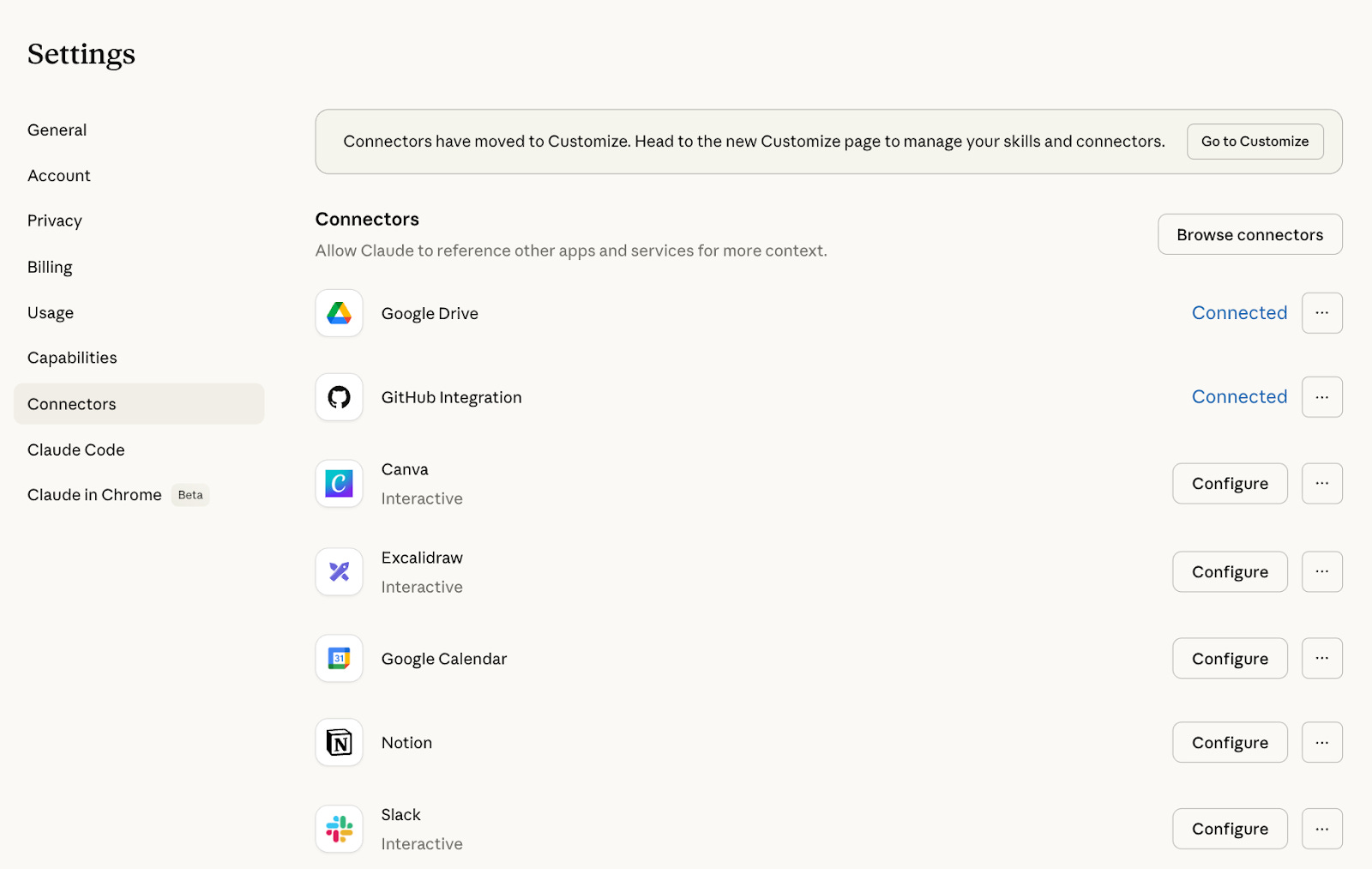
Go to Settings in Claude. Click Connectors. Pick a service (let’s say Gmail).
Authorize access.
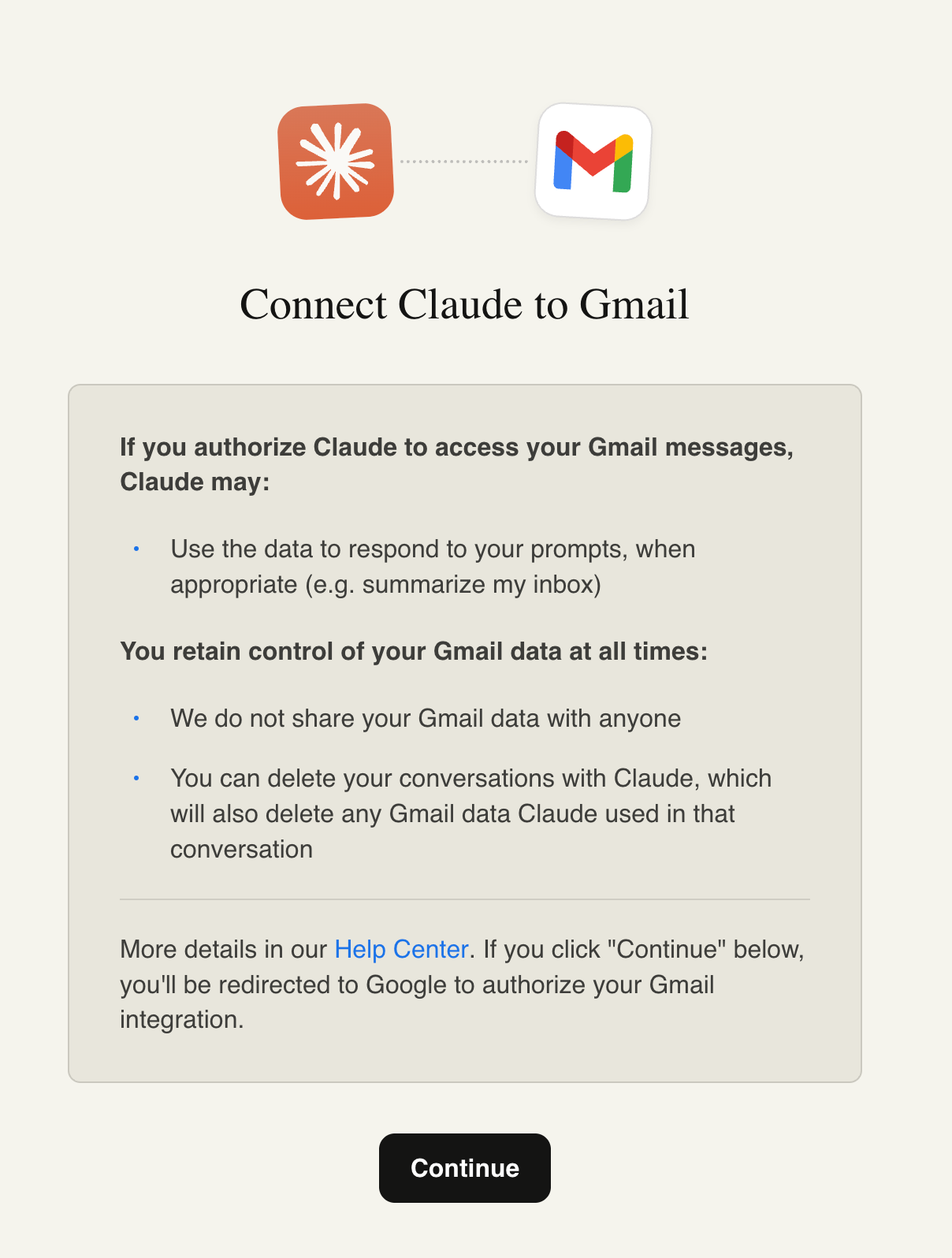
Done.
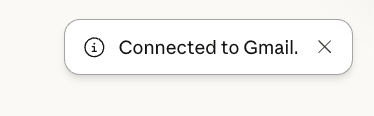
Takes about 30 seconds.
Use Case: Beginner
Connect your Gmail. Then type:
Use this prompt:
Go through my Gmail and tell me my latest 5 emails.Here is the output.
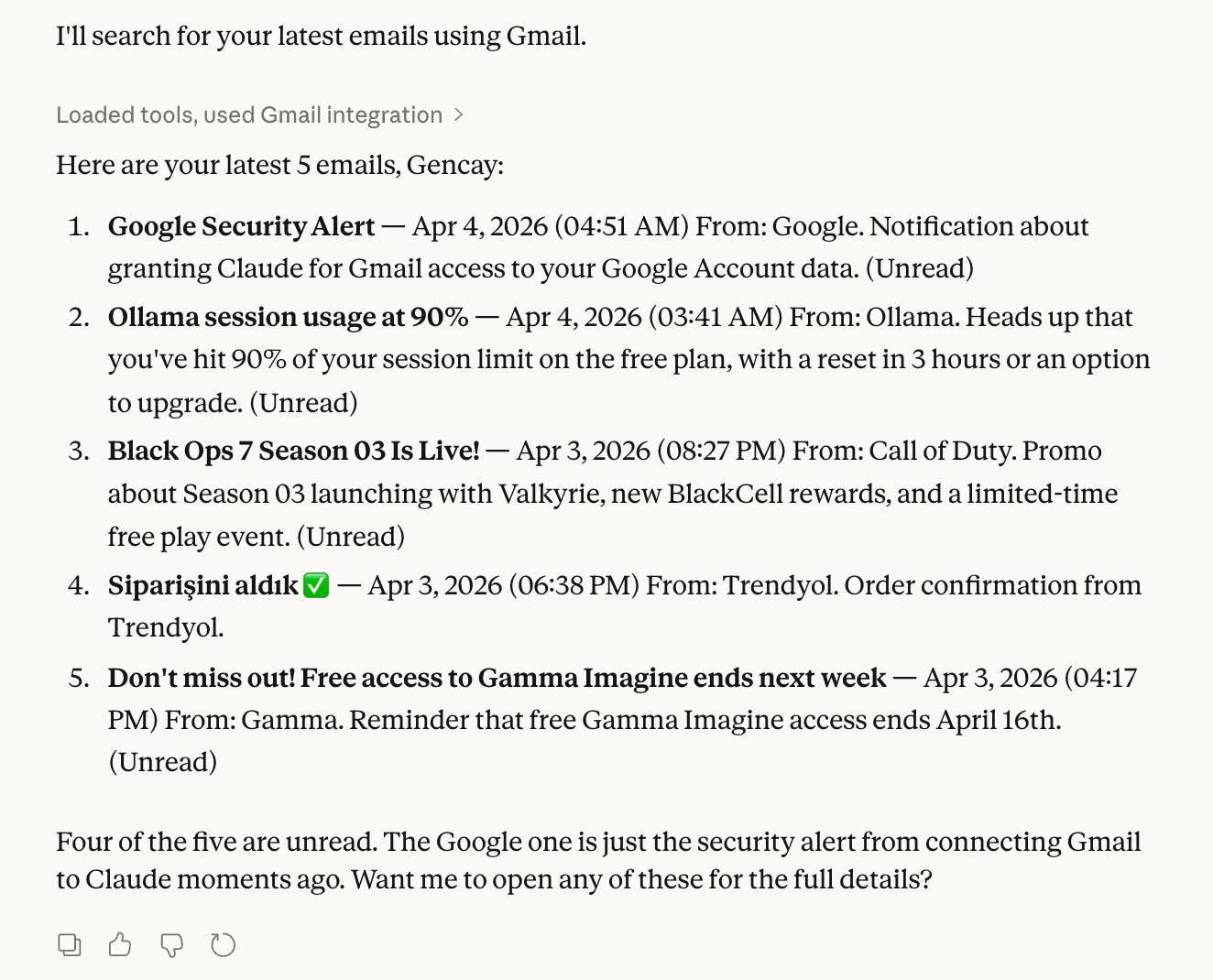
Claude pulls your Gmail data, reads through it, and gives you a clean summary.
Advanced: Multiple Connectors At Once
This is where it gets powerful. You connect two or more services, and Claude works across both at the same time.
Let me show you a real example using two connectors:
Vibe Prospecting and
Google Drive.
Vibe Prospecting is a third-party connector you can add from Claude’s Directory. It turns Claude into a prospecting platform. You can look up any company or professional, get contact information, roles, tech stack, funding events, hiring trends, and more.
It has 12 built-in tools, including things like enrich-business, enrich-prospects, and export-to-csv. All inside the chat.
Google Drive is Anthropic’s own connector. Two tools: Drive search and Drive fetch. Claude can find documents in your Drive even when you don’t remember the exact file name, read their contents, and pull information from files scattered across folders.
Now watch what happens when you use both together.
Say you have a Google Doc in your Drive called “Q2 Target Companies” with a list of 15 businesses you want to reach out to. Instead of researching each one manually, you type:
Open my Google Drive file called ‘Q2 Target Companies.’ For each company on the list, use Vibe Prospecting to pull their latest funding data, tech stack, and hiring trends. Flag the ones that raised funding in the last 6 months or are actively hiring for roles related to our service. Give me a prioritized outreach list with the best opportunities at the top.One prompt. Claude reads your Drive doc, pulls live company data through Vibe Prospecting.
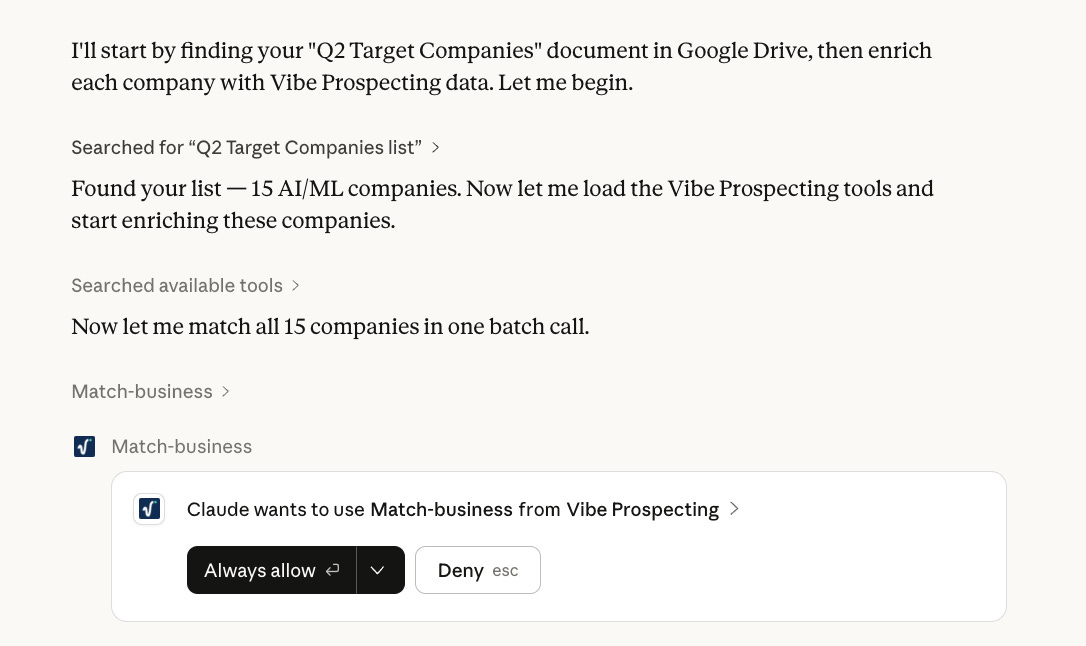
It will filter the results based on your criteria and hand you a ranked list of who to contact first.
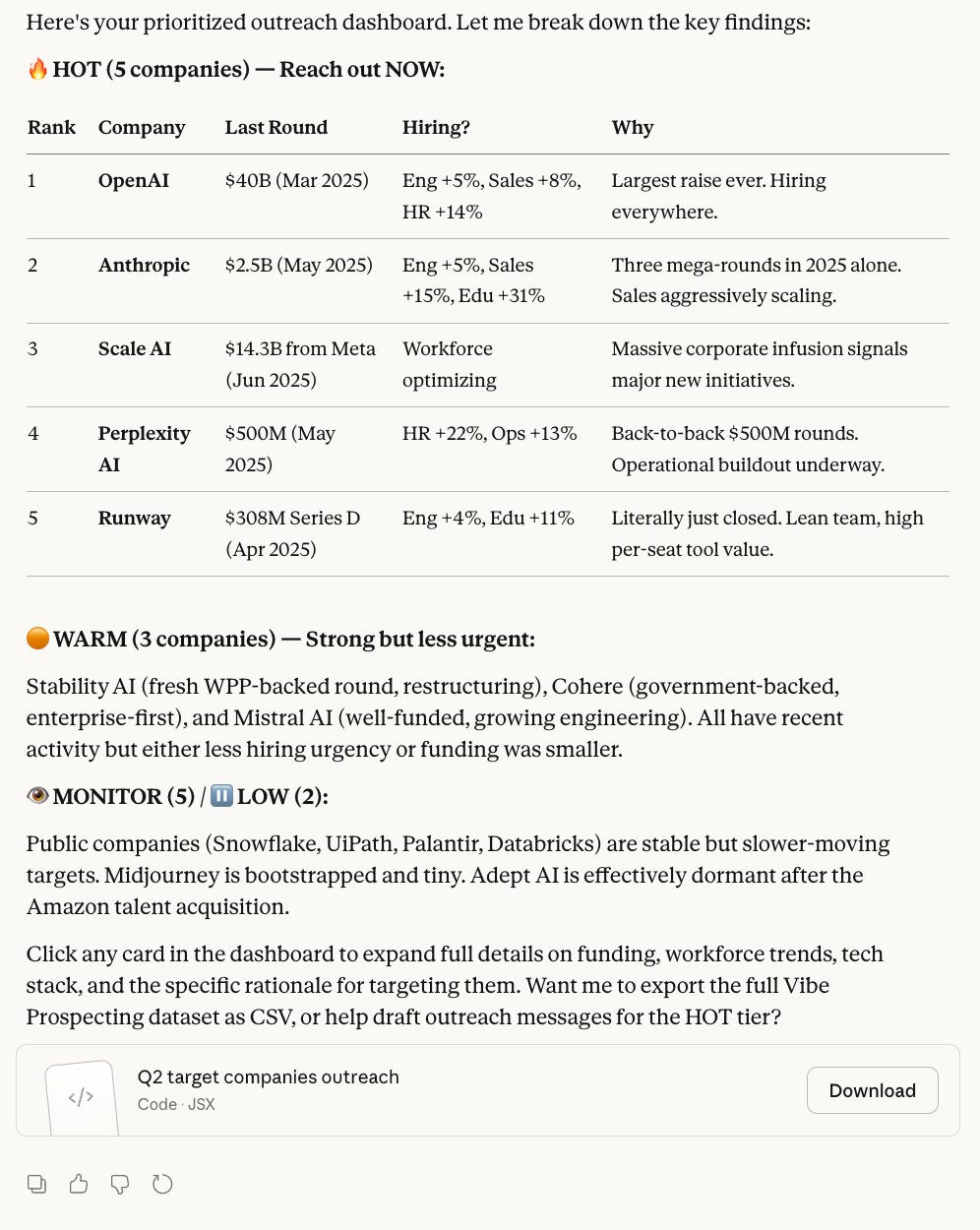
That’s not a chatbot answering a question. That’s a research assistant doing an hour of work in 30 seconds.
You can download this file, but it also opens inside Canvas, like this.
The more connectors you add, the more context Claude has. And context is the difference between a generic AI response and a genuinely useful one.
Artifacts: Claude Builds Real Apps
This is the feature that surprises people the most.
In one sentence: artifacts let Claude create working interactive tools, apps, documents, and visualizations right inside the chat. No technical knowledge needed.
You describe what you want.
Claude builds it.
A working thing appears on your screen.
You click buttons, enter data, and see results. It’s not a mockup. It’s functional.
How to activate it
First, you should allow artifacts. Where?
Go to: https://claude.ai/settings/capabilities
Turn this toggle on.
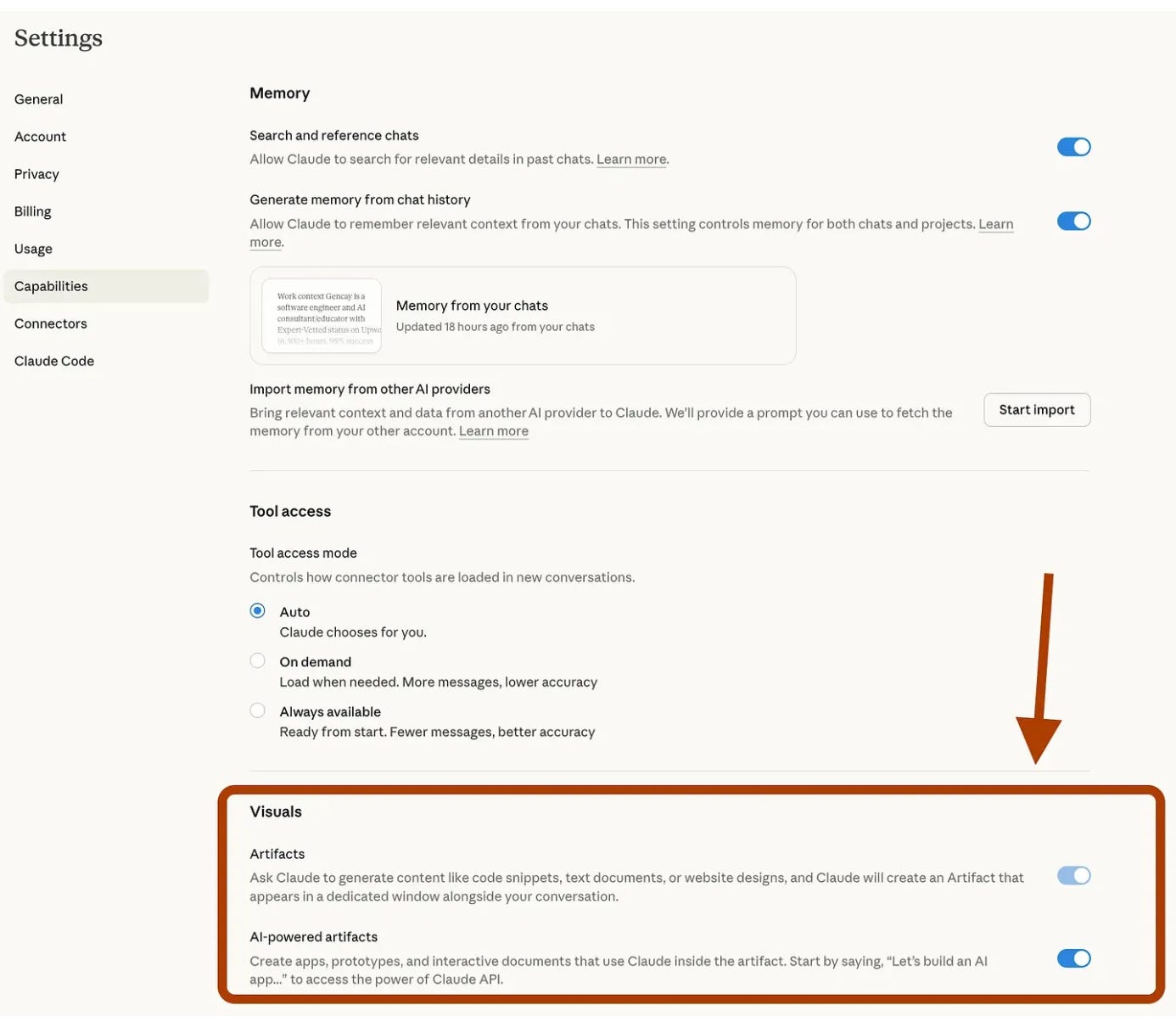
That’s it!
Use Case: Beginner
To create an artifact in Claude, ask it to build one.
You can be more specific, but for this use case, let’s keep it simple and build a basic artifact.
Let’s give Claude my Substack URL and ask it to create an artifact that helps improve my workflow.
Use this prompt:
Hey Claude, build an artifact for me. Here is my Substack: https://learnwithmeai.com/. Take info from here. Surprise me.After just a few minutes, my artifact is ready.
Advanced: Proposal Review
Here’s where artifacts get serious. Because they don’t just calculate. They think.
Claude can build artifacts that have AI built into them. The tool itself can talk to Claude’s brain, analyze your input, and give you intelligent responses. Not pre-programmed logic. Actual AI reasoning, live, inside the tool.
Let me explain what that means in practice.
Say you’re a CEO who reviews proposals every week and you want to automate the process.
Use this prompt:
Build me a proposal reviewer tool. I want to paste in a client proposal, and the tool should use AI to analyze it. I want it to score the proposal on clarity, feasibility, and ROI potential (each out of 10), flag any red flags or vague language, and suggest three specific questions I should ask the client before signingClaude started to build the tool.
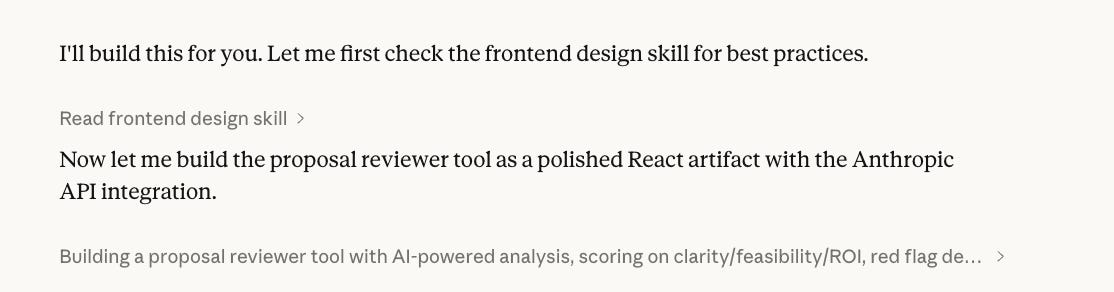
A text box appears where you paste any proposal.
You hit “Analyze.” The tool sends that text to Claude’s AI behind the scenes, processes it, and returns a structured breakdown.
Let’s see it.
What’s next?
This was Part 1.
We covered two features, connectors and artifacts, and you already have enough to change how you work.
Part 2 goes deeper into all things Claude Skills, which Joel Salinas will author.
If you want to go further right now, visit LearnAIWithMe, it’s where I publish guides, prompt libraries, and real-world systems for getting more out of AI without writing a single line of code.
Subscribe so you don’t miss Part 2.
Thank you, Gencay!
Most leaders I coach can describe what Claude is, but very few have spent twenty real minutes inside it doing the kind of work Gencay just walked through, and that gap is exactly what separates leaders who delegate AI literacy from leaders who develop it themselves.
Part 2 covers Claude Skills and goes live on Gencay’s Substack, LearnAIWithMe, so subscribe there to catch it.
QUESTIONS LEADERS ARE ASKING
How is Claude different from ChatGPT?
Claude is built by Anthropic and tends to be stronger at reading long documents, following careful multi-step instructions, and producing structured work. Leaders often prefer it for research, writing, and building internal tools because it stays focused on the actual task instead of drifting into generic answers.
What are Claude Connectors and which ones should I start with?
Connectors let Claude read directly from tools you already use, including Gmail, Google Calendar, Google Drive, Notion, and Slack. Start with Gmail and Google Drive. Those two cover most of the work a leader does in a day and unlock real cross-tool prompts within minutes.
What can I actually build with Claude Artifacts without writing code?
Working tools. A proposal reviewer that scores client pitches. A meeting prep dashboard. A pricing calculator your team can actually click through. You describe what you want in plain English, and Claude builds a functional artifact inside the chat. No engineering background required.
Is Claude safe to use with confidential business data?
Anthropic does not train its models on data submitted through paid Claude plans by default, and enterprise plans add stronger data handling controls. Always check your organization’s AI policy before connecting tools that contain client information, financials, or anything covered by a confidentiality agreement.
How long does it really take to learn enough Claude to be useful?
Less than you think. Twenty focused minutes inside Claude, with a real task in front of you, beats hours of passive video watching. Pick one workflow you already run every week, drop it into Claude with one connector turned on, and you will feel the difference immediately.
Written by a human, for humans.
Joel

Claude is absolutely overlooked by many business es. It’s fairly accessible for business users and it can do wonders once you master the artifacts, skills, and connectors.