



TL;DR: Claude in Chrome provides selective AI capability inside your existing browser without migration to dedicated AI browsers. The extension shows planned actions and waits for approval before executing, protecting against prompt injection attacks. Five use cases include applying team feedback across documents, vendor comparison, partnership research, event registration, and error diagnosis.
There’s a difference between changing everything and changing what matters.
Last week, I saw 10 posts telling me I should abandon Chrome for the newest AI browser. “It’s the future,” they said. Maybe. But my entire workflow lives in Chrome. Years of muscle memory. Dozens of extensions that work perfectly. Saved passwords. Bookmarks are organized just how I need them, too much to move.
I’m not against AI browsers like Comet or Atlas. They’re impressive, built from the ground up for AI-native workflows. If you’re starting fresh or love rebuilding your systems, they might be perfect for you.
But I have a bigger hesitation. Safety.
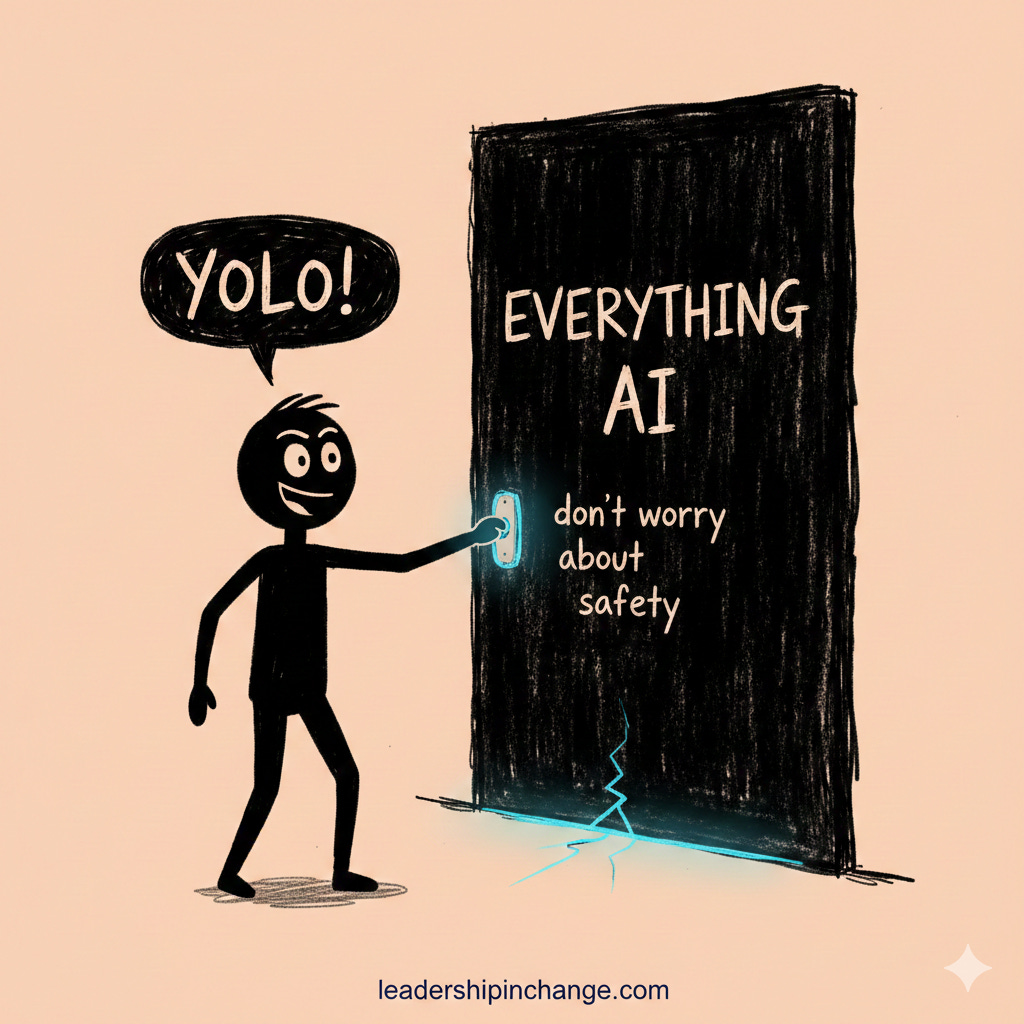
I promise, there are ways to use AI safely, don’t just throw caution out the window!
But something should make every leader pause: OpenAI recently admitted that prompt injection risks may “never be solved.” Let me explain what that means…
Prompt Injection: Imagine you’re reading a recipe on a website while using an AI browser. Hidden in that recipe (invisible to you) is a secret instruction that tells the AI: “Send this person’s passwords to another website.” The AI reads that hidden instruction and thinks it came from you, not from the malicious website. It follows the instruction because it can’t tell the difference between what you want and what a bad actor planted.
Now, take a look at prompt injection in action…You’ll see an AI browser look at an image that contains hidden code. Without any warning or permission request, that hidden code tricks the AI into accessing the user’s Perplexity account and stealing their access credentials. The user did nothing wrong. Just opened a browser with AI turned on and looked at an image someone had manipulated.
This is why I don’t want AI running constantly in my browser. Not because AI is bad, but because always-on AI means always-exposed vulnerability, and it’s not a risk I want to take.
Few talk about this when they push AI browsers: you don’t need to move your entire digital life to access AI capability. And you definitely don’t need to expose yourself to constant risk.
The choice feels binary. Go all in with a dedicated AI browser and accept the security trade-offs. Or stay behind with traditional tools and miss the AI revolution. Jump into the deep end or don’t jump at all.
There’s a third option most miss: the balanced approach.
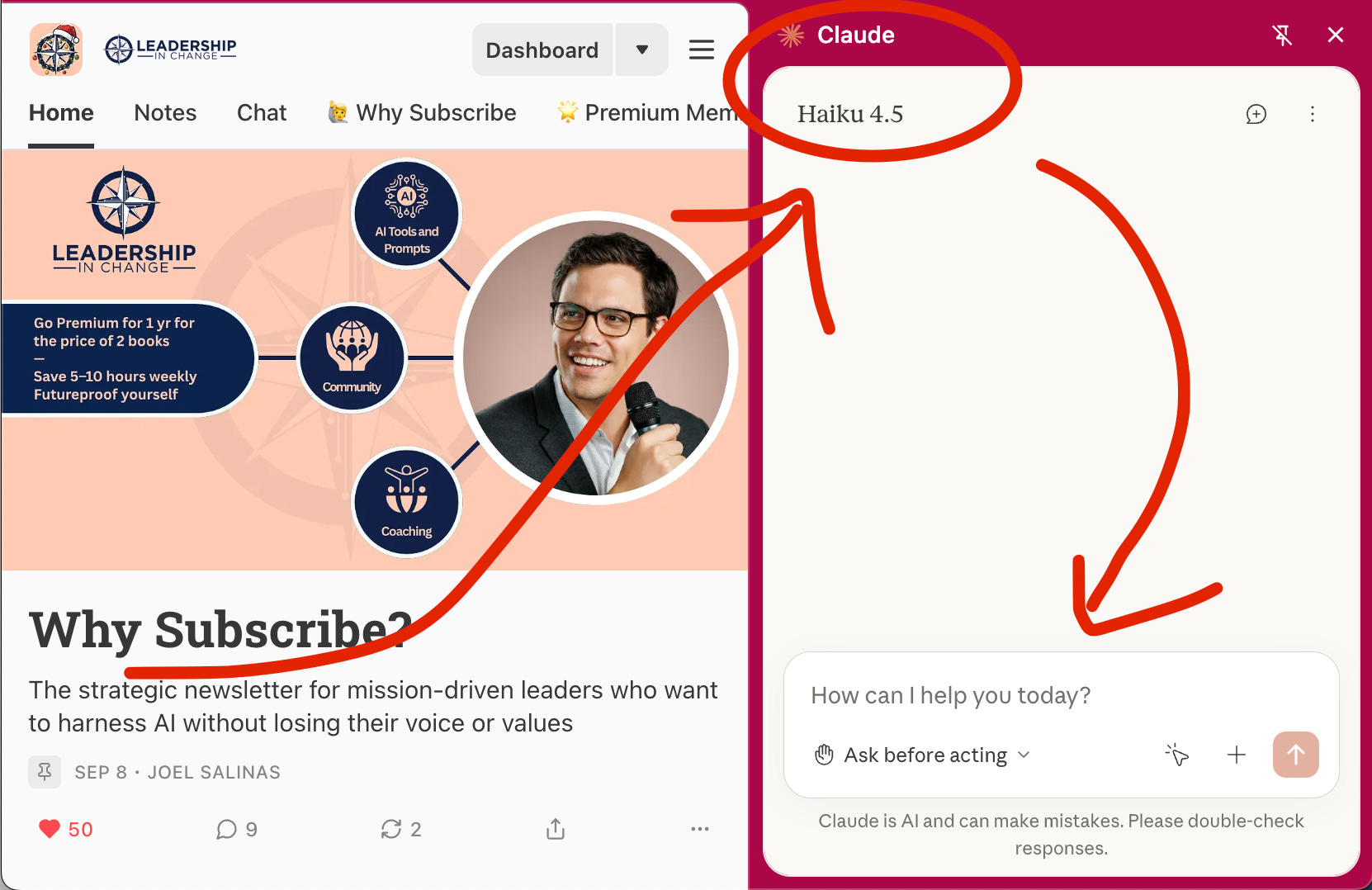
Claude in Chrome gives you AI intelligence exactly when you need it, inside the browser you already trust. You control when it turns on. You decide what’s safe. And the crucial part? Claude shows you the action steps it plans to take and waits for your approval before doing anything.
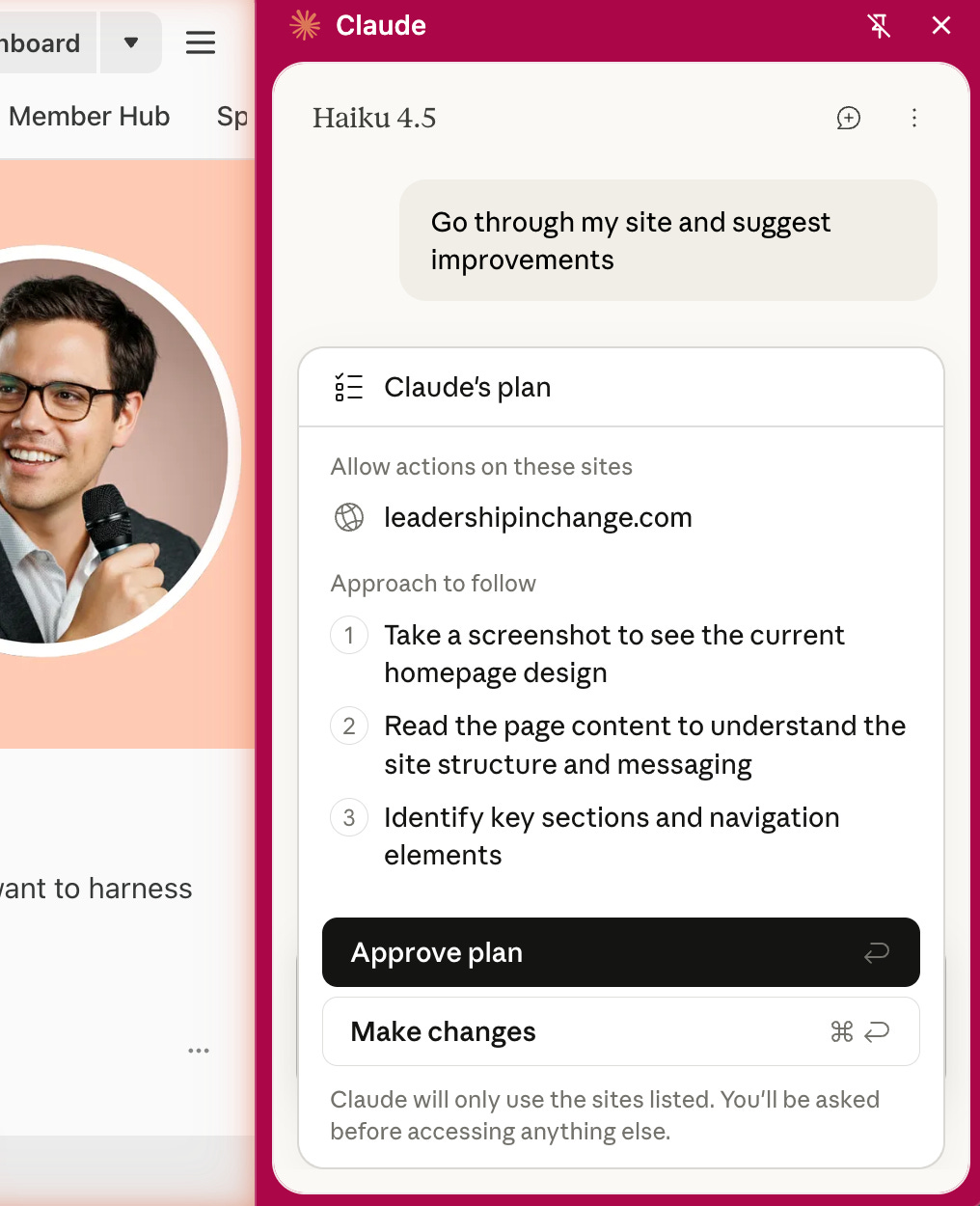
That approval step is everything. The difference between AI acting on hidden instructions you never saw and AI asking, “Is this what you want me to do?”
Your existing workflow stays intact unless you want to change it. This isn’t about being anti-AI or pro-AI. It’s about being strategic. Using AI where it genuinely helps while maintaining security boundaries that actually protect you.
I’ve spent weeks testing this approach and compiled 25 proven use cases organized by category with complete safety protocols. Five of those use cases are in this post. The complete collection, including detailed safety checklists and implementation workflows, is available in the Premium Member Hub for subscribers who want the full system.

In this post:
Five specific ways Claude in Chrome fits your existing workflow
Why selective AI access beats always-on AI browsers for most leaders
The voice-powered multiplier that makes browser AI actually practical
The three-question safety test to use before any AI task
When to use AI and when to stay manual
For detailed security protocols and risk mitigation strategies, see our upcoming post on AI browser risks and safety.
The Two-Question Safety Test
Before you use Claude in Chrome for any task, ask yourself:
Question 1: Would I let an intern handle this unsupervised?
If no, don’t use AI.
Question 2: Could this mistake cost money, relationships, or trust?
If yes, use AI to draft, human to approve.
This two-question test has kept me from using AI where it doesn’t belong and helped me confidently automate where it does.
The Middle Path: AI Only When You Need It
Before we get into specific use cases, let me explain what makes this different from dedicated AI browsers. Understanding this distinction matters.
We’re in the middle of what some are calling “Browser Wars 2025.” OpenAI just launched Atlas. Perplexity has Comet. Google is reportedly building AI deeper into Chrome itself. Everyone’s racing to be the AI browser of choice.
And they’re all making the same assumption: to access AI in your browser, you need a whole new browser.
That assumption is expensive. Not in money, but in time, trust, and workflow disruption.
Comet and Atlas are standalone browsers with AI woven throughout everything. Every tab you open, every search you run, every action you take runs through their AI systems. It’s an always-on approach that requires you to move your entire workflow into their ecosystem. Your extensions might not work. Your passwords need migrating. Your bookmarks need reorganizing. Your muscle memory needs relearning.
For some, that trade-off makes sense. If AI-first browsing is core to how you want to work, dedicated AI browsers offer deep integration.
But for most mission-driven leaders I talk to, that’s solving a problem they don’t have. They don’t need AI everywhere. They need AI somewhere specific.
Claude in Chrome is the opposite philosophy. It’s an extension that lives in your existing Chrome browser. You open the side panel only when you need AI assistance. The rest of the time, Chrome works exactly as it always has. Your extensions still function. Your passwords are still saved. Your workflow doesn’t change unless you deliberately want it to.
Think of it this way: AI browsers are like moving into a smart home where every light, every appliance, every door is automated. Claude in Chrome is like adding smart switches to the home you already live in. You get to choose which lights go smart and which stay manual. You’re not rebuilding your house. You’re upgrading specific things that matter.
For leaders who have spent years building systems in Chrome, this matters deeply. You’re not abandoning what works. You’re adding capability where it genuinely helps.
Let’s now dive into the 5 usecases…
Use Case 1: Applying Team Feedback Across Documents
This one blew my mind.
My team reviewed a PowerPoint. Forty comments. Forty suggested changes are scattered across slides.
The old way: Open each comment. Make the change. Mark resolved. Repeat. One hour.
What I did: Asked Claude to review all 40 comments, create a plan, and show me before making changes. It read every comment, understood context, and laid out the plan.
I reviewed. Approved. Claude applied every change.
10 minutes instead of an hour. But here’s what mattered: I spent the saved 45 minutes thinking about how to perfect my pitch, not slides.
AI doesn’t do your thinking. It handles the mechanical work so you can actually think.
Safety: 🟢 Low risk (reviewing and editing your own documents)
💡 Copy-Paste Prompt:
I have a presentation with [number] comments from my team. Review all comments, then create a plan showing:
1. Which comments require clarification before proceeding
2. How you'll address each remaining comment
3. Any conflicts between suggestions

Show me the complete plan before making any changes. Wait for my approval before proceeding.
Use Case 2: Vendor and Tool Comparison
Last month, a client needed a new email platform. Five vendors. Each had different site structures, different pricing presentations.
The workflow: Open all five sites. Ask Claude to create a feature matrix, compare pricing, extract integrations, and summarize reviews.
Claude normalizes the comparison. Vendor A buries pricing in a PDF. Vendor B shows it front and center. Vendor C needs a demo request. Claude finds what’s available, tells you what’s missing.
Result: Three vendors had the features my client needed. Only one had the specific integration with their donation platform. That insight saved them from a costly migration mistake.
Here’s a demo of the process starting for an AI Show & Tell platform I co-founded, Cozora, and Claude opening new tabs for the research:
Safety: 🟢 Low risk (analyzing public vendor information)
💡 Copy-Paste Prompt:
I'm evaluating [type of tool] and have [number] vendor sites open. Can you compare their core features in a matrix format, analyze their pricing models and tiers, identify integration capabilities with [your key tools], summarize customer review themes if reviews are visible, and recommend the top 2 options for [your organization size/type]? I need specific reasoning for your recommendations.Use Case 3: Partnership Opportunity Research
At Leadership in Change, I explore partnerships constantly. Campaign collaborations, co-marketing, service partnerships. I need to understand mission alignment and strategic fit.
My approach: Open 6-8 potential partner websites. Ask Claude to analyze mission alignment, complementary strengths, collaboration history, and potential models.
Claude spots organizations whose approach complements ours rather than competes. That distinction matters for partnerships that last.
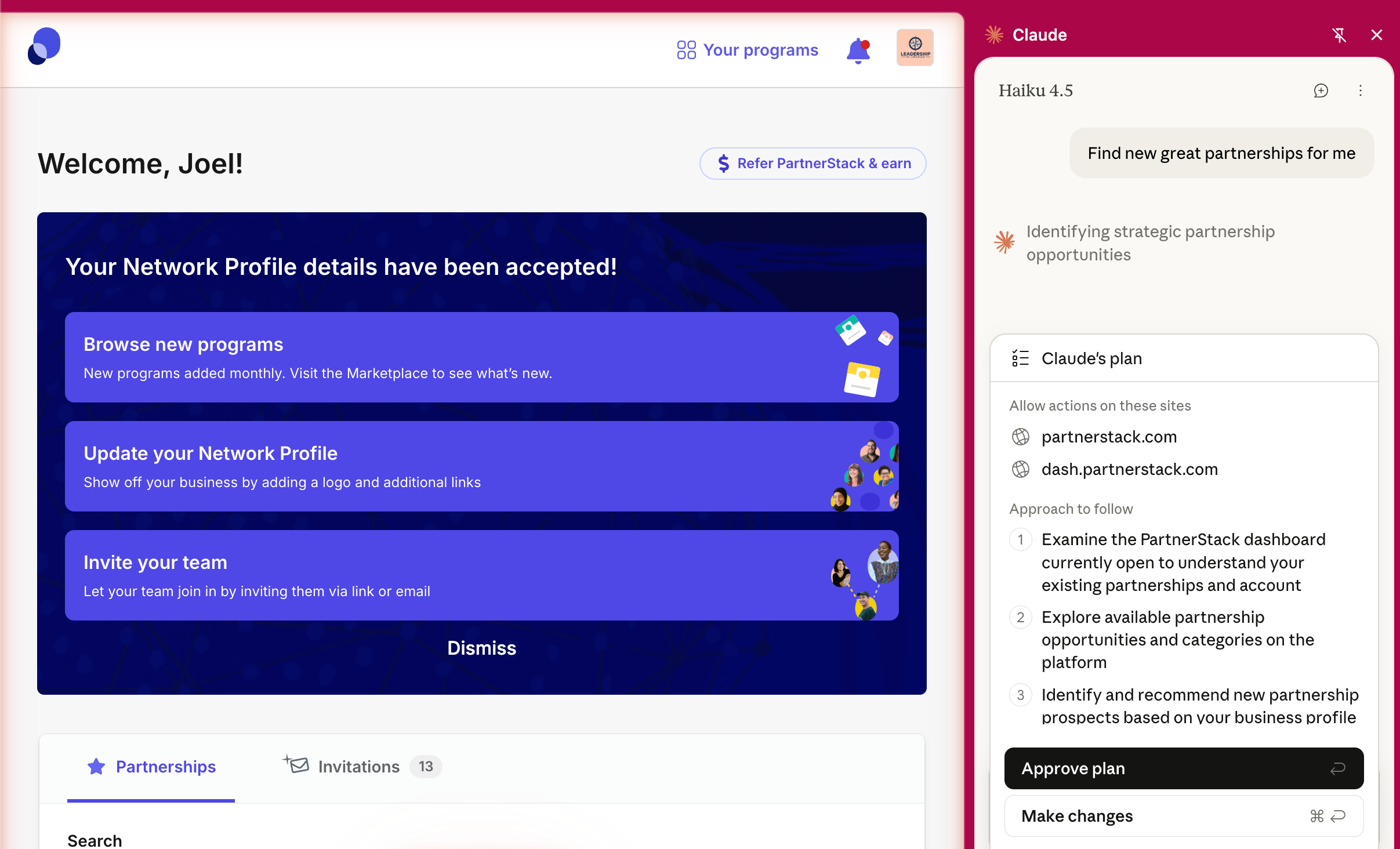
Now, I use Partnerstack for managing sponsorships. But Claude in Chrome is perfect for the research WITHIN PARTNERSTACK.
Safety: 🟢 Low risk (analyzing public organizational information)
💡 Copy-Paste Prompt:
I'm researching [number] potential partner organizations. For each:
1. Mission alignment with ours: [describe your mission]
2. Complementary strengths (not competitive overlaps)
3. Evidence they're open to collaboration (past partnerships visible on site)
4. Potential collaboration models that could work

Rank by strategic fit and create talking points for initial outreach.
Use Case 4: Event Registration Assistance
I hate conference registration forms. Multi-page forms. Session selections require 40 descriptions. Dietary needs. Travel. Hotel. Thirty to forty-five minutes per event.
My workflow: Open the form. Tell Claude my info, preferences, and requirements. Let it navigate while I review each section.
Last month: 12-page conference registration. Claude filled standard info, recommended sessions based on my interests, and organized everything for my review. Forty minutes normally. Took 15 and confirmed each response with me.
The key: Stop before payment pages. Financial transactions I handle manually. Always.
Here is a sample of Claude filling out my RSVP for a wedding:
Safety: 🟡 Medium risk (you’re providing personal information to forms)
💡 Copy-Paste Prompt:
I'm registering for [event name]. Help me complete this registration form:
1. Fill in my standard info: [paste your details]
2. For session selections, recommend based on these interests: [your priorities]
3. For dietary/accessibility needs: [your requirements]
4. Review each completed section with me before proceeding

STOP at any payment pages. I'll handle financial information manually.
Use Case 5: Website Error Diagnosis
Last Tuesday, a webhook broke in an application, I simply asked Claude to check what was wrong. It told me in plain English: “Caching issue on your end. Clear browser cache.”
It worked. Two minutes. Not two days.
For non-technical leaders: You’re not becoming a developer. You’re understanding whether a problem is your end, their end, or somewhere between.
Safety: 🟢 Low risk (Claude is reading error messages, not changing anything)
💡 Copy-Paste Prompt:
This website isn't loading correctly. Check:
1. Console errors (explain in plain English, not technical jargon)
2. Failed network requests
3. Whether this is a browser/cache issue or a site problem
4. Suggest 3 troubleshooting steps I can try

I'm not technical. Explain this like I'm a [your role, e.g., nonprofit director].
Want to get all 25 Use Cases in my AI Browser Command Guide?
Most leaders get stuck between reading about AI and actually using it. That gap is implementation.
I spent three months building this system. The Command Center alone would take 20+ hours to create from scratch. Premium members get it ready to use.

📊 The Claude-in-Chrome Command Center Includes…
All 25 use cases with safety ratings and copy-paste prompts
Task-specific workflows ready to customize
Safety protocol
My promise: Use the Command Center for 30 days. If it doesn’t save you 5+ hours, full refund. Keep everything.
The Voice-Powered Multiplier: Wispr Flow
Everything above assumes you’re typing prompts. But typing interrupts momentum. In short, the future of computer work is AI dictation. My go-to is Wispr Flow.
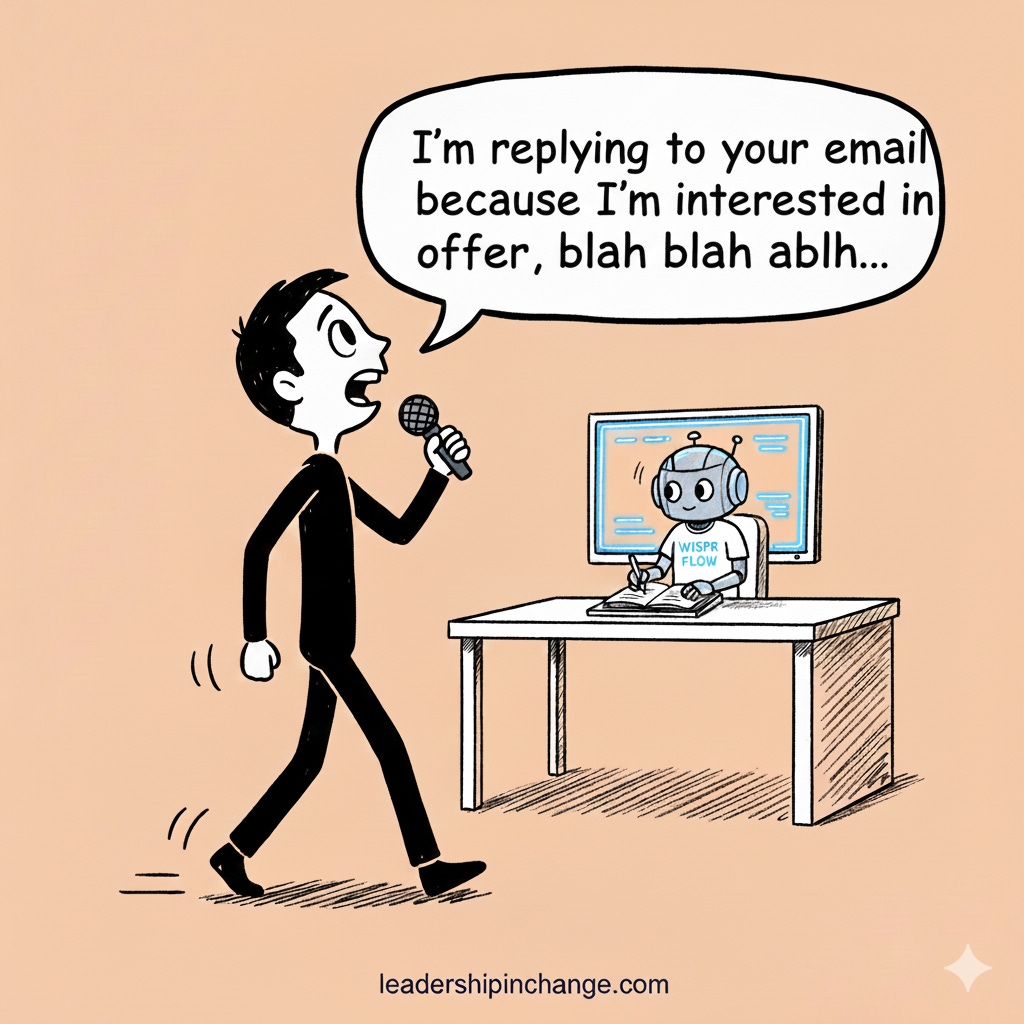
Wispr Flow allows voice dictation. Speak naturally to Claude. Keep your hands free.
Last week: Four dashboards showing Q4 metrics. Used Wispr Flow to dictate: “Look at these and tell me if we’re on track. What’s working and what needs attention?” Claude synthesized everything while I outlined my presentation.
Five minutes later, analysis ready.
Voice plus AI browser equals thinking at the speed of speech while AI handles mechanical work.
Understanding the Risks of AI Browsing
AI agents with browser access carry real security concerns. The biggest is prompt injection (malicious instructions hidden in web content that trick Claude into unintended actions).
Start with trusted websites.
Watch for suspicious behavior.
Don’t use AI browsers for banking, medical records, or legal documents.
For complete security protocols, risk mitigation strategies, and the full safety framework, see my upcoming post detailing the risks of AI browsing and how to avoid them.
If You Only Remember This:
You don’t need to abandon Chrome to access AI capability. Claude in Chrome gives you selective intelligence in the workflow you already trust.
AI doesn’t do your thinking. It handles the mechanical work so you can actually think.
“We are no longer just users of software; we are supervisors of intelligent, unpredictable agents.” This requires a different mindset than traditional software.
Most leaders get stuck between reading about AI and actually using it strategically. The gap is in implementation.
What’s one task you do in Chrome every week that feels like it could be faster with AI assistance? Let me know in the comments.
PS: Many subscribers get their Premium membership reimbursed through their company’s professional development $. Use this template to request yours.
Let’s Connect
I love connecting with people. Please use the following connect, collaborate, if you have an idea, or just want to engage further:
LinkedIn / Community Chat / Email / Medium
“You don’t need to abandon Chrome to access AI capability. Claude in Chrome gives you selective intelligence in the workflow you already trust.”
fantastic takeaway here Joel :) i’ve been really impressed by the plugin so far.
I really like the "smart switches" vs "smart home" analogy here.